
Customise
3 optionsSet resource balances, then spend or activate them normally in Worms Zone.
View customisation options →Set wardrobe coins for a new look, stock Speed potions or refill Energy for Treasure Hunter. Collect food and grow your worm on your next run.
Requires the Windows app and the Bytonian Mods browser extension for Chrome or Edge. Browser setup guide

Start with free mods
Download Bytonian Mods for Windows and try these free features. Choose one to see how it works and any requirements.
Choose your stock of Speed potions for temporary boosts during a run.
Set the stock, apply it, then press the Speed button during a run.
Each activation consumes a potion. If unavailable, finish a round and claim the first-play gift first.
Spend coins in the wardrobe to buy and select worm looks. Set Speed potion stock for temporary boosts during a run, or refill Energy before entering Treasure Hunter.
Open Worms Zone through Bytonian Mods, let your game load and open Customization. Choose a value and apply it, then use the resource through the game's usual buttons. If Coins or Speed potions are unavailable, play a round first; collect coins and claim the first-play gift to initialize those supplies.
Set resource balances, then spend or activate them normally in Worms Zone.
View customisation options →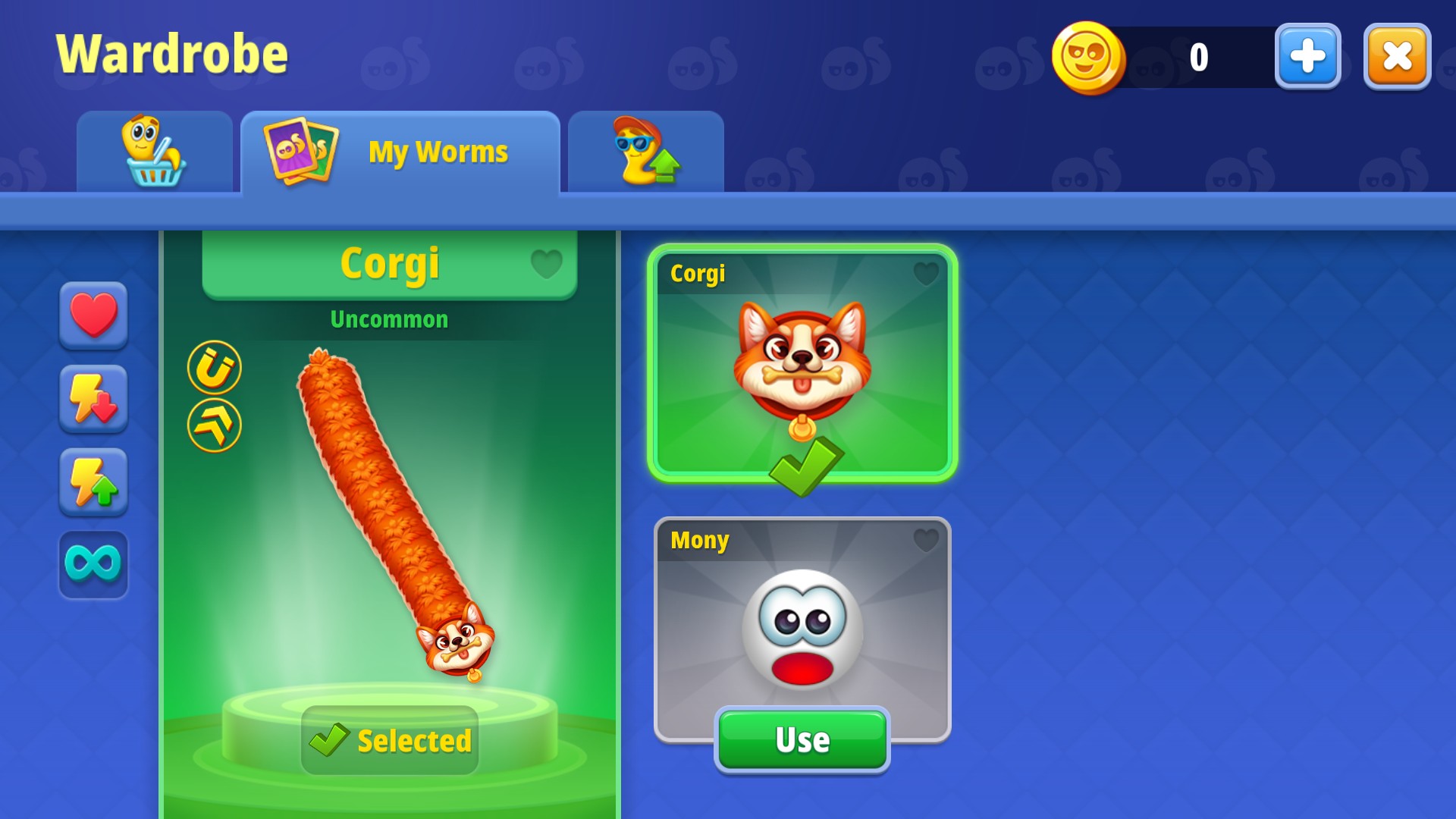
Choose a new worm look
Spend wardrobe coins to buy and select a different worm skin.
Download the Windows app and follow the setup prompts.
Set up the browser extension in Chrome or Edge, then open the supported YouTube Playable. Follow the connection guide if the game is already running.
Open Customise in Bytonian Mods, choose an option and follow its instructions. Check the available values and any limits before making your change.