

Make a sword or trail style available
Make supported swords and trails available, then choose a weapon and swing effect from the Skins menu. The two controls are separate, so you can change the look you want.
Requires the Windows app and the Bytonian Mods browser extension for Chrome or Edge. Browser setup guide
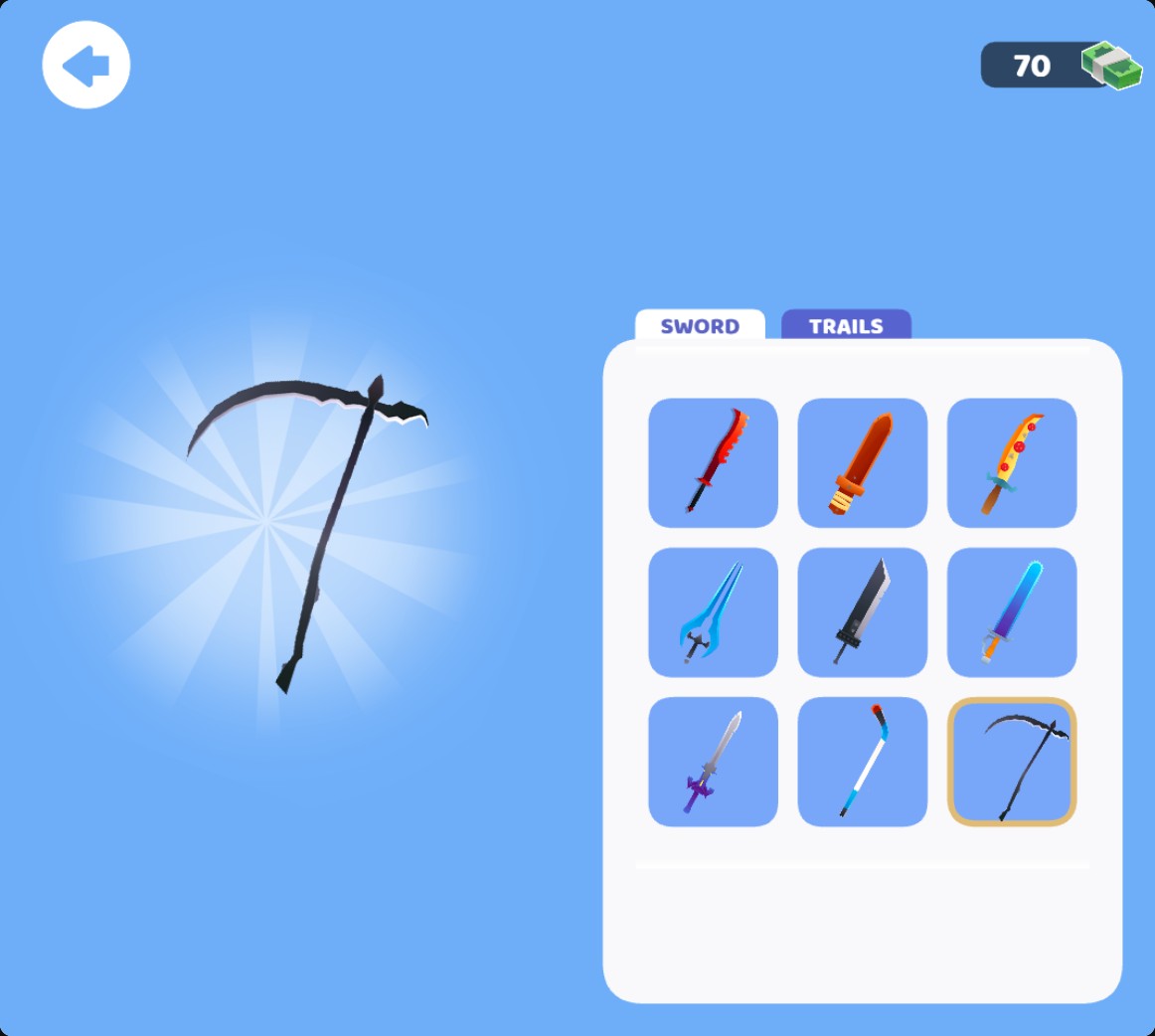
Choose a different sword
Make supported sword skins available, then pick a weapon in the Skins menu. Here the scythe is selected with the cash balance still at 70.
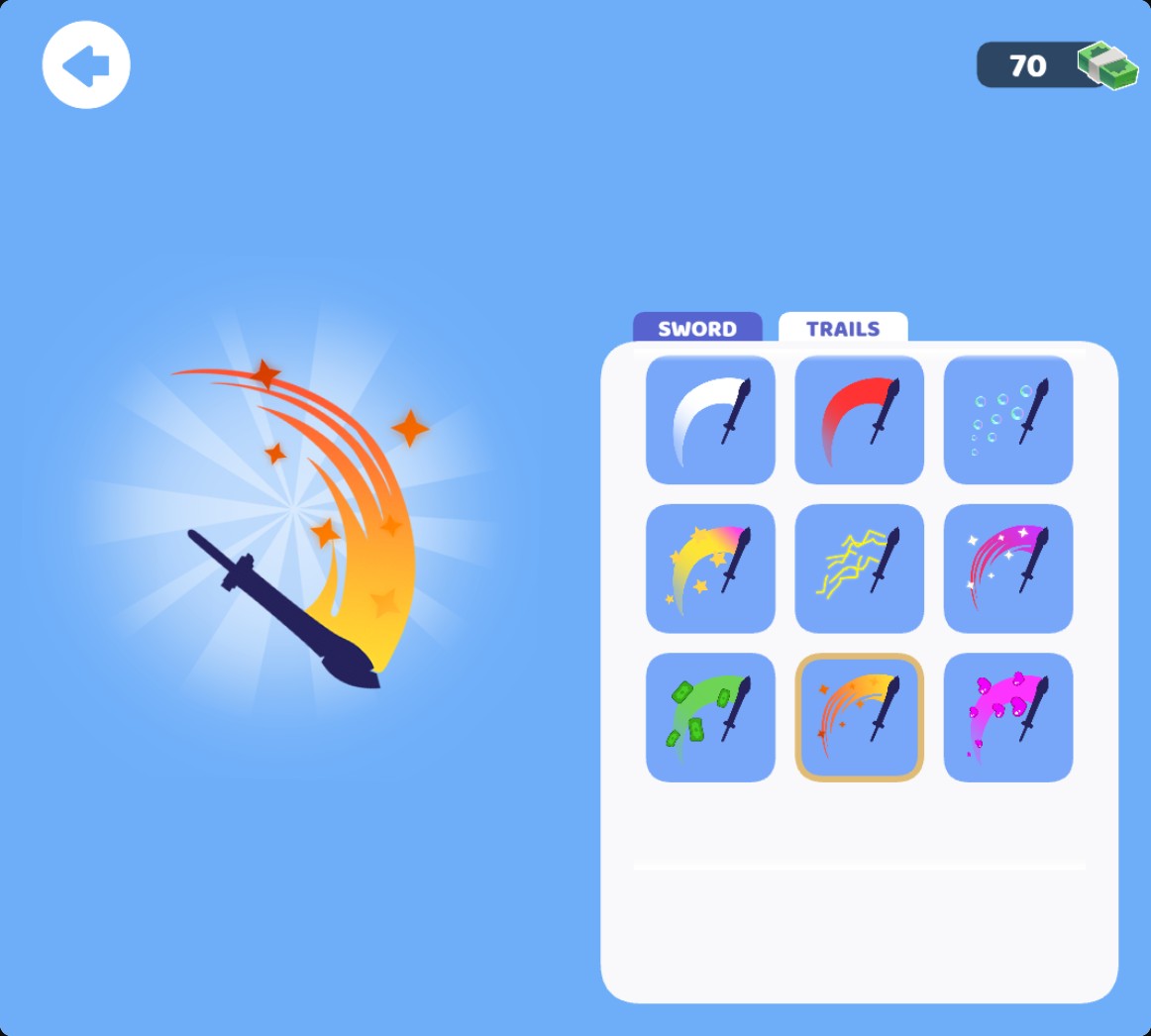
Pick a colourful sword trail
Make supported trails available and select a style in the Skins menu. This orange trail is selected with 70 cash still showing.
Sword skins
The sword action makes supported weapon styles available for selection. Open the Sword tab and pick the card you want; the large preview shows the selected weapon.
Trail effects
The trail action makes supported effects available. Switch to Trails and select a colour or effect to see its preview. Trail availability is a free option; sword skin availability is Premium.
Available customisation options
Make sword skins availablePremium
Make supported sword skins available so you can choose a different weapon, including the scythe, in the Skins menu.
Apply, open Skins, select Sword and choose a weapon card.
Make trail styles availableFree
Make supported trails available and choose a colourful effect for your sword swings.
Apply, open Skins, select Trails and pick an effect.
Questions about customisation options
- Does applying an action choose my style?
- After applying availability, select your preferred card in the game's Skins menu.
Using these features
Connect your game, then open Customise in the Windows app. Choose an option, check its available values and follow its instructions. Each option lists its own requirements and limits.
Setup for Sword Play →