

Customise
2 optionsTwo separate actions let you choose supported sword skins and trails.
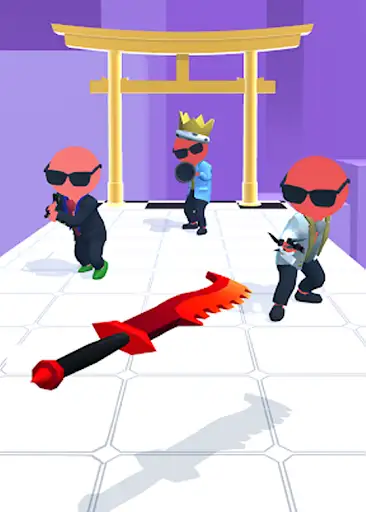
View customisation options →Make supported sword skins and trail styles available in Sword Play, then choose your look from the Skins menu between runs. Guide your sword through obstacle courses and enemies with the weapon and swing effect you picked.
Requires the Windows app and the Bytonian Mods browser extension for Chrome or Edge. Browser setup guide
Start with free mods
Download Bytonian Mods for Windows and try these free features. Choose one to see how it works and any requirements.
Make supported trails available and choose a colourful effect for your sword swings.
Apply, open Skins, select Trails and pick an effect.
Make supported sword skins available and choose a weapon from the collection, including the scythe. Trail customization gives you a separate set of effects to pair with your chosen sword.
Two separate actions let you choose supported sword skins and trails.
View customisation options →Download the Windows app and follow the setup prompts.
Set up the browser extension in Chrome or Edge, then open the supported YouTube Playable. Follow the connection guide if the game is already running.
Open Customise in Bytonian Mods, choose an option and follow its instructions. Check the available values and any limits before making your change.