
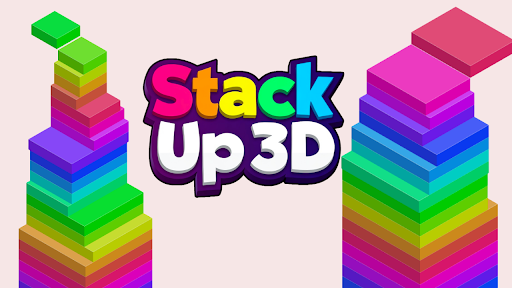
Choose your Stack Up 3D look
Switch the tower's colors directly, or use coins to buy and equip themes in the game's store. Both controls let you choose a look before another round.
Requires the Windows app and the Bytonian Mods browser extension for Chrome or Edge. Browser setup guide
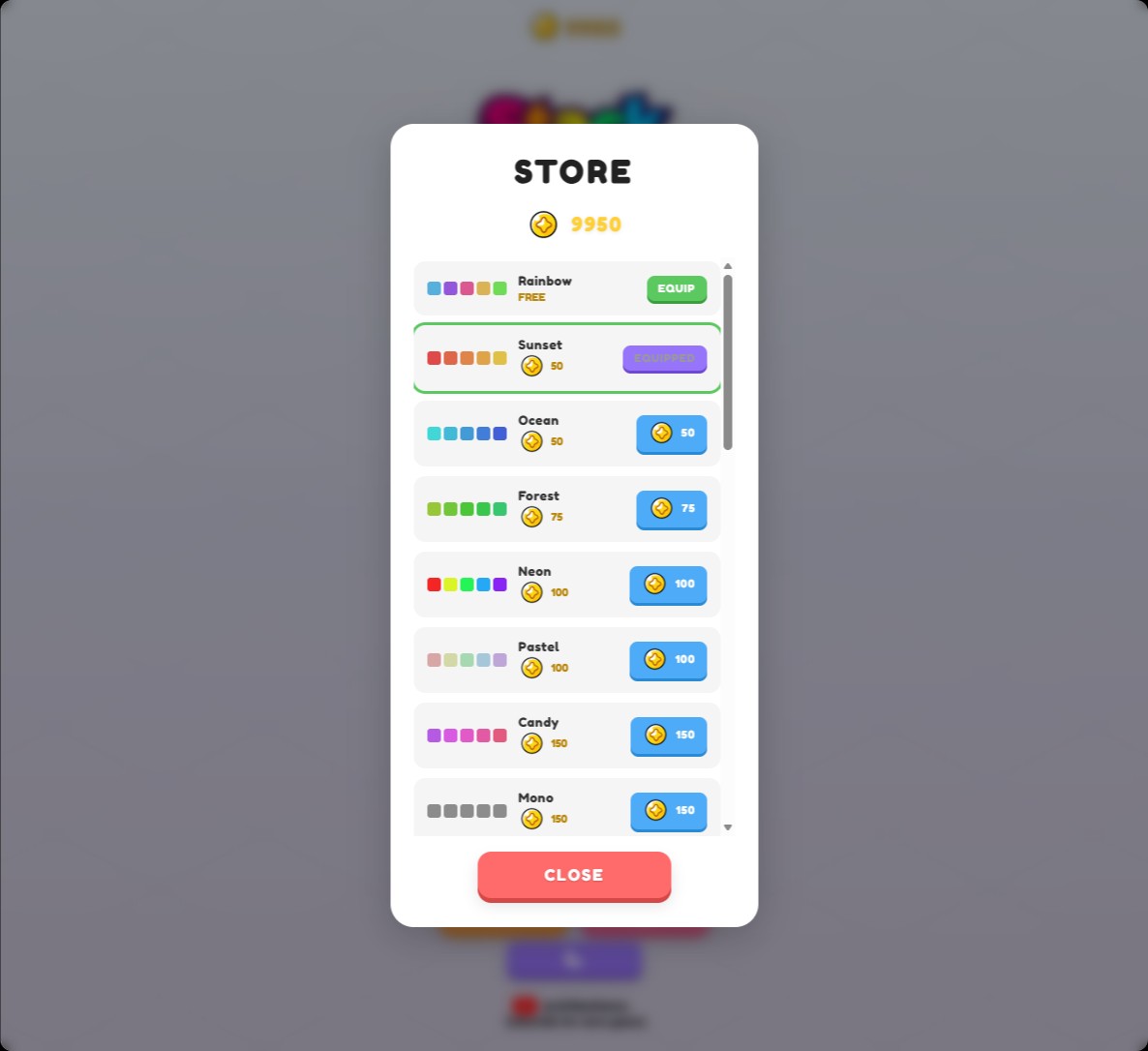
Coins for your next theme
Choose your coin balance, then buy and equip a theme from the store.
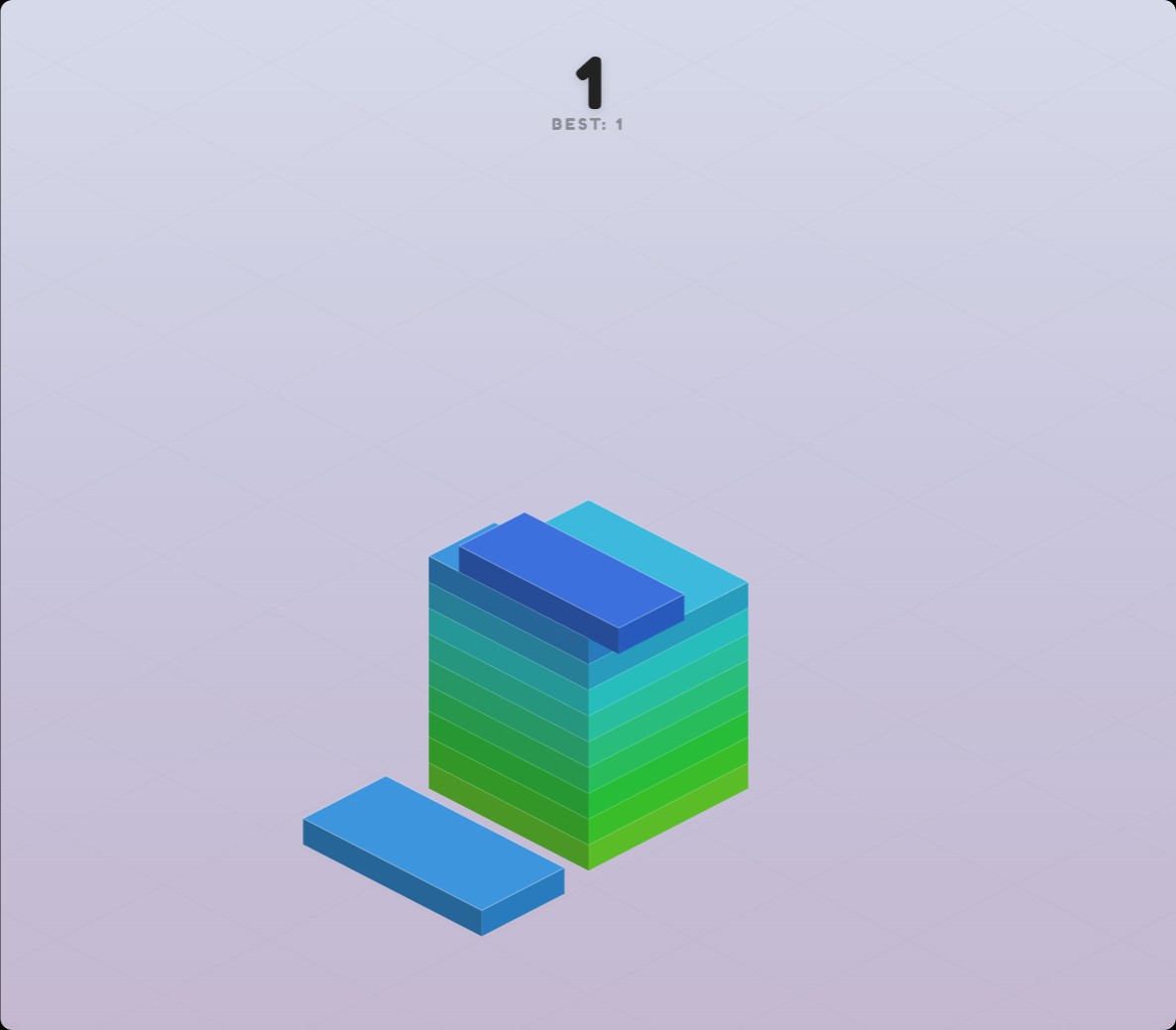
Stack in Aurora colors
Give your next tower the green, teal and blue Aurora palette.
Pick a stack theme
Choose a bright palette such as Neon, a softer Pastel look or the cooler colors of Arctic. The selector changes the stack palette; it does not mark themes as purchased in the store.
Buy themes with coins
Set a coin balance, apply the change, then open the store. Buy a theme using its normal purchase button to add it to your collection and equip it.
Available customisation options
CoinsPremium
Set your coins to shop for stack themes.
Apply your balance, then open the store and buy a theme normally.
Stack themeFree
Choose one of 24 color palettes for your tower.
Pick a palette and apply it before your next round.
Choosing a palette does not mark it as purchased in the store.
Questions about customisation options
- Does choosing a palette buy it in the store?
- No. The selector changes the tower's appearance. Use a normal store purchase when you want to add a theme to your collection.
Using these features
Connect your game, then open Customise in the Windows app. Choose an option, check its available values and follow its instructions. Each option lists its own requirements and limits.
Setup for Stack Up 3D →