
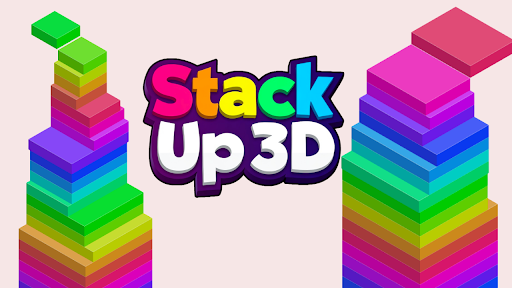
Customise
2 optionsSelect a palette or coins for the theme store.
View customisation options →Choose one of 24 color palettes for your tower or set coins to buy themes in Stack Up 3D. Then time each drop to see how tall you can stack the blocks.
Requires the Windows app and the Bytonian Mods browser extension for Chrome or Edge. Browser setup guide
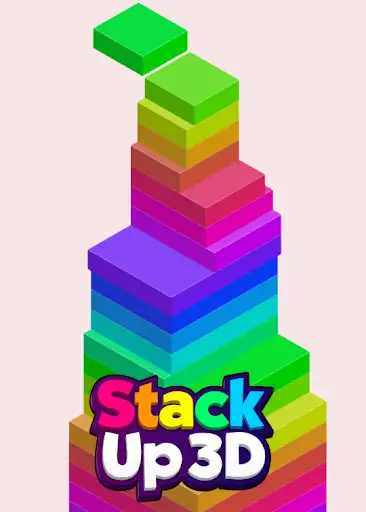
Start with free mods
Download Bytonian Mods for Windows and try these free features. Choose one to see how it works and any requirements.
Choose one of 24 color palettes for your tower.
Pick a palette and apply it before your next round.
Choosing a palette does not mark it as purchased in the store.
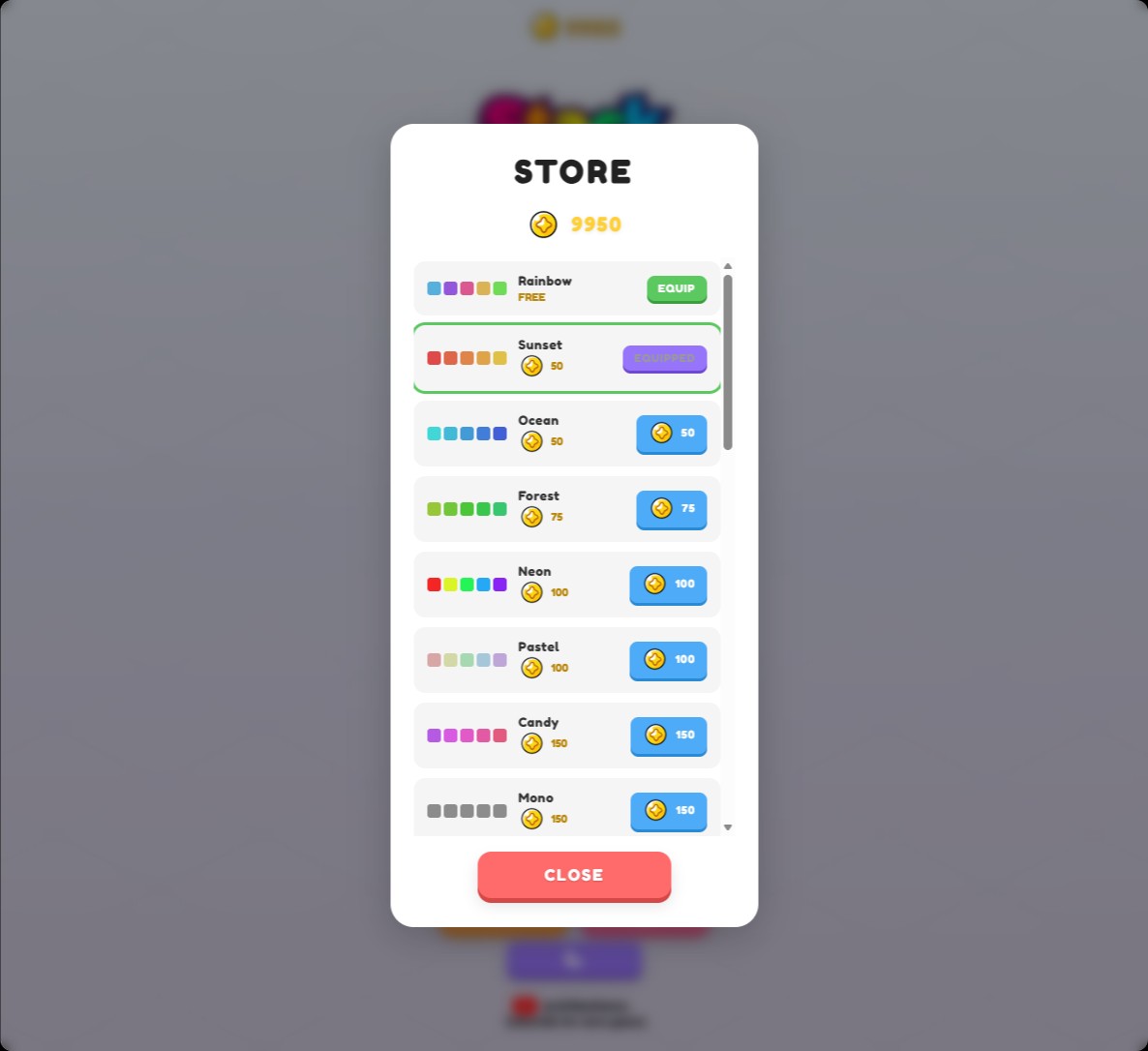
Coins for your next theme
Choose your coin balance, then buy and equip a theme from the store.
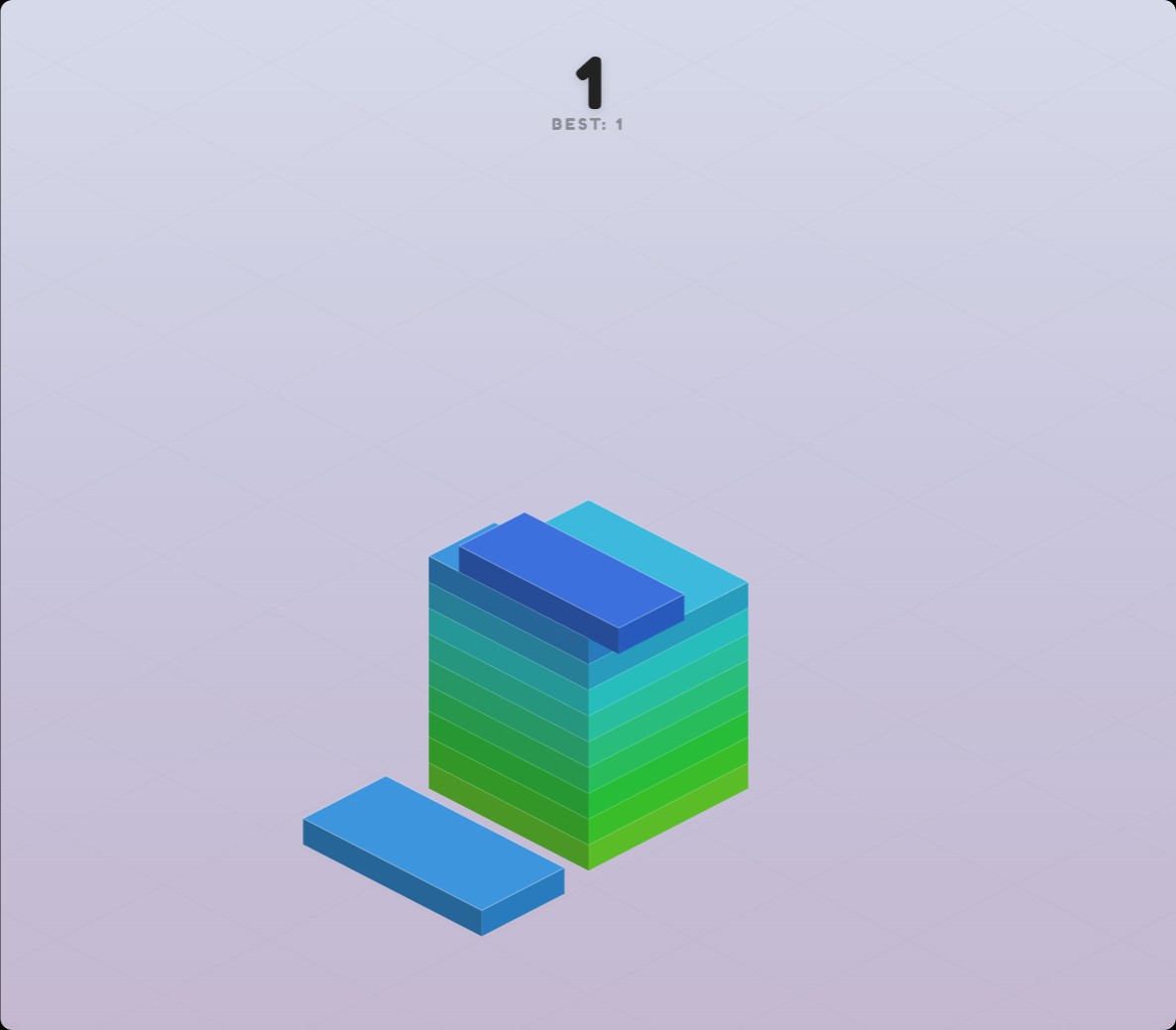
Stack in Aurora colors
Give your next tower the green, teal and blue Aurora palette.
The free Stack theme control lets you choose among 24 palettes, including Rainbow, Ocean, Galaxy and Aurora. The Premium Coins control gives you a balance to spend through the normal store.
Open Stack Up 3D with Bytonian Mods and connect the game. In Customize, select your changes and press Apply & reload. Return to the game to start stacking or open the store.
Select a palette or coins for the theme store.
View customisation options →Download the Windows app and follow the setup prompts.
Set up the browser extension in Chrome or Edge, then open the supported YouTube Playable. Follow the connection guide if the game is already running.
Open Customise in Bytonian Mods, choose an option and follow its instructions. Check the available values and any limits before making your change.