
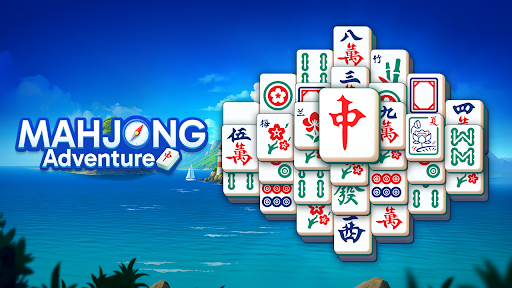
Choose Your Tile Artwork
Set the tile style before returning to your puzzle. Choose a familiar design or brighten the board with flowers.
Requires the Windows app and the Bytonian Mods browser extension for Chrome or Edge. Browser setup guide

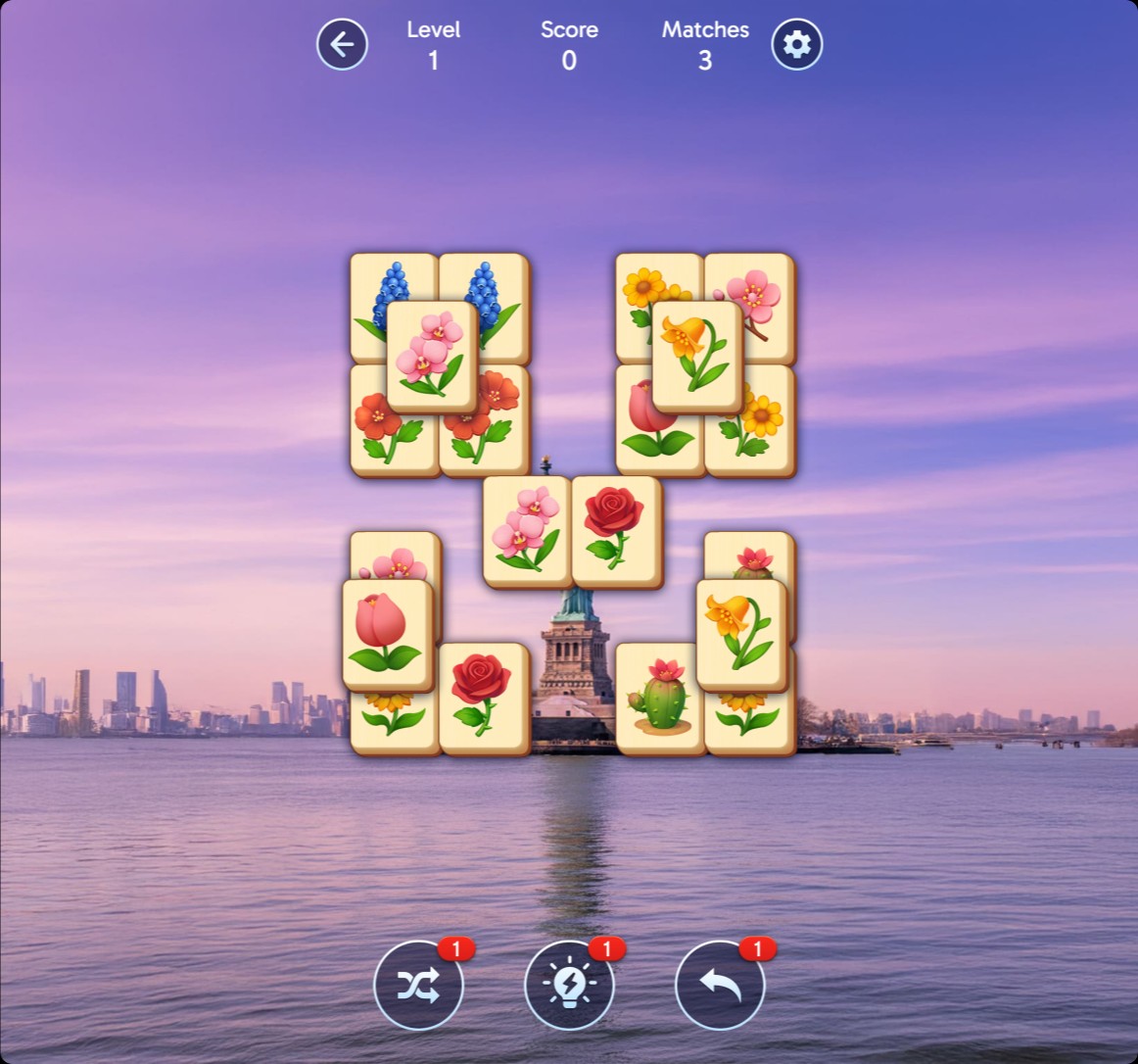
Flower Tile Theme
Choose Flower to replace the traditional tile symbols with colourful flowers while keeping the matching board and familiar controls.
Select a style
Choose Classic for traditional symbols, Simple for a cleaner design or Flower for colourful flower illustrations. Apply your selection, then continue playing.
Return to the layered board
Look for matching pairs with a free side, then clear the tiles above to uncover more pieces. Your selected artwork appears on the tiles as you play.
Available customisation options
Tile ThemeFree
Choose Classic, Simple or Flower artwork for the tiles.
Select a style, apply the change and return to the game.
Questions about customisation options
- How do I use Tile Theme?
- Select Classic, Simple or Flower and apply the change before continuing the game.
- Does Flower change the matching rules?
- The pieces use flower artwork while the normal pair-matching rules remain.
Using these features
Connect your game, then open Customise in the Windows app. Choose an option, check its available values and follow its instructions. Each option lists its own requirements and limits.
Setup for Mahjong Adventure →