
Choose your Magic Tiles 3 song-menu start and badge
Go straight to the full song menu instead of the first-song introduction, or choose the profile badge level you want to display. Apply your selections to reload Magic Tiles 3.
Requires the Windows app and the Bytonian Mods browser extension for Chrome or Edge. Browser setup guide

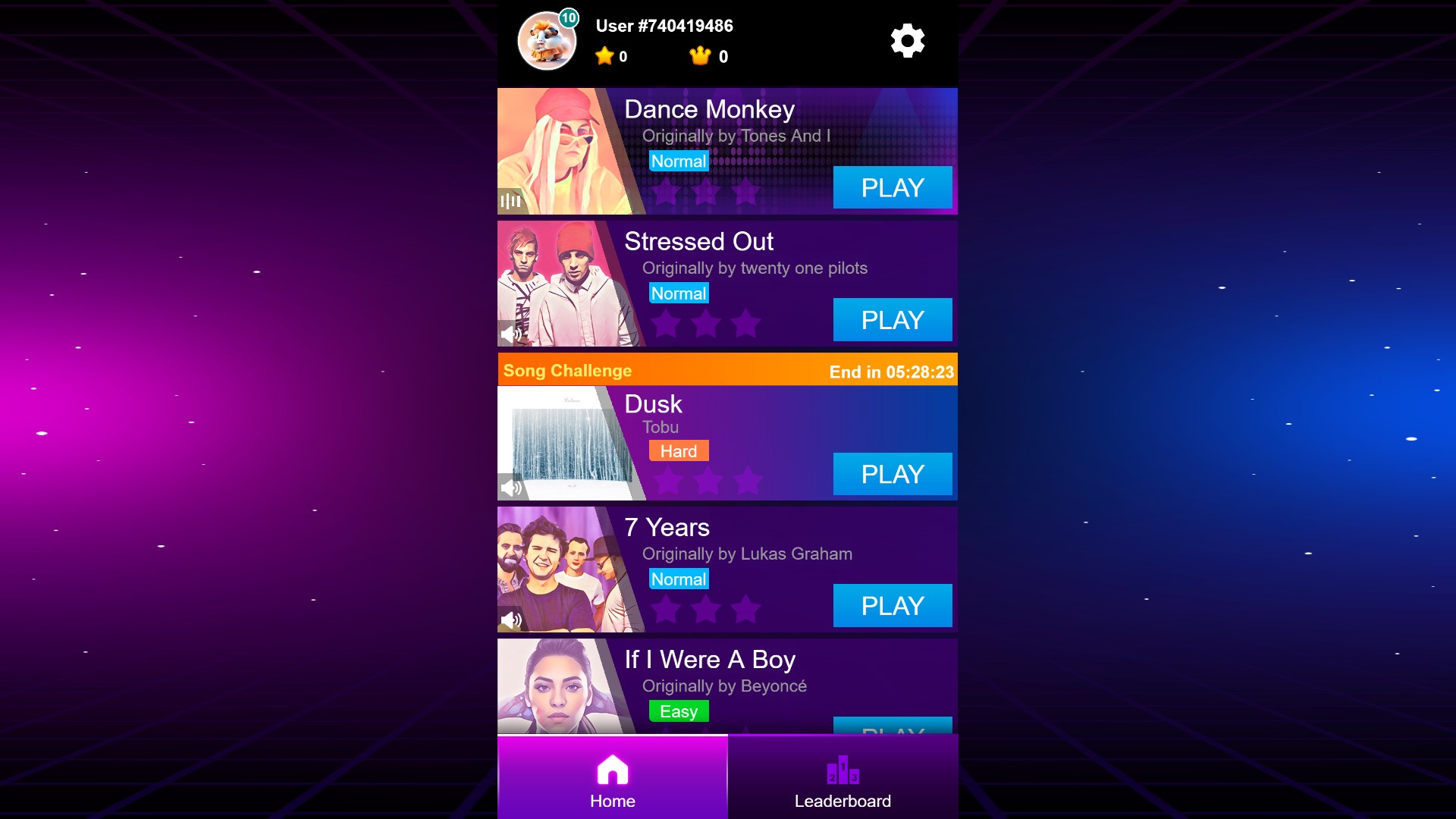
Full song menu and profile level 10
Skip the introduction to browse the full song menu, or choose your displayed profile level. The badge here shows level 10, with zero stars and crowns.
Free introduction bypass
Skip the initial three-song selection and open the full song menu. This changes your starting screen without completing a song.
Choose a displayed profile level
Choose a displayed profile level from 1 to 10. This changes the profile badge; stars and crowns are separate. Later play may update your level again.
Available customisation options
Skip first-song introductionFree
Go straight to the full song menu instead of the first-song introduction.
Turn on the bypass and apply your choice. The game reloads.
Does not complete songs or grant rewards.
Profile levelPremium
Choose the profile badge level shown in Magic Tiles 3, from 1 to 10.
Choose a level and apply it. The game reloads.
This changes the displayed badge, not stars or crowns. Later play may update your level again.
Questions about customisation options
- Does choosing level 10 unlock every song?
- This changes the displayed profile level. You still play songs normally; stars and crowns are separate.
Using these features
Connect your game, then open Customise in the Windows app. Choose an option, check its available values and follow its instructions. Each option lists its own requirements and limits.
Setup for Magic Tiles 3 →