
Resources
1 optionSet the current gem balance to your chosen amount.
View resources →Set your gem balance, move directly to the next playable course, or open the game's hard challenge. Steer numbered jelly cubes past spikes and matching blocks as you choose which Jelly Run 2048 course to take on next.
Requires the Windows app and the Bytonian Mods browser extension for Chrome or Edge. Browser setup guide

Start with free mods
Download Bytonian Mods for Windows and try these free features. Choose one to see how it works and any requirements.
Move forward to the next playable course.
Apply Skip Course, check the new level number and use the game's normal Start prompt.
Advances one course at a time; it does not select a numbered course.
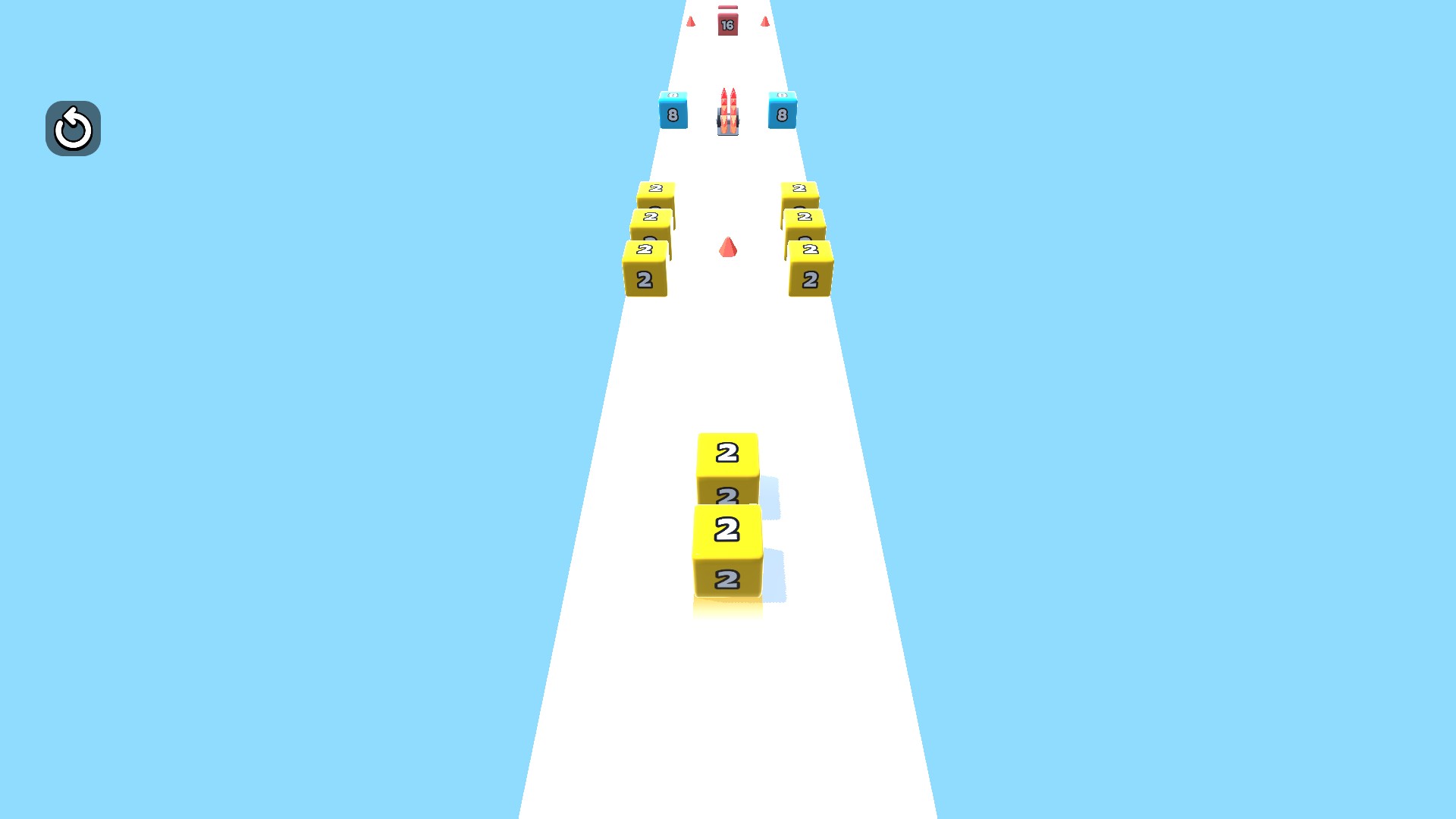
Jelly Run 2048 numbered-cube course
Guide your jelly cube toward matching numbers while avoiding spikes and other hazards.
Gems sets the balance you choose. Free Skip Course advances one normal course, while premium Hard Challenge opens its separate challenge prompt.
Open Jelly Run 2048 with Bytonian Mods connected. Choose Resources or Game Actions, select the control you want and apply it. When a new course or the hard challenge displays a Start prompt, use the game's normal Start button to begin.
Set the current gem balance to your chosen amount.
View resources →Skip one course for free or open the hard challenge.
View game actions →Download the Windows app and follow the setup prompts.
Set up the browser extension in Chrome or Edge, then open the supported YouTube Playable. Follow the connection guide if the game is already running.
Review the available options in the app and choose the ones that suit how you play.