

Choose your Coins and tool reserves
Set the amount you want for Coins, Wands or Magnets, apply the change and return to the puzzle.
Requires the Windows app and the Bytonian Mods browser extension for Chrome or Edge. Browser setup guide
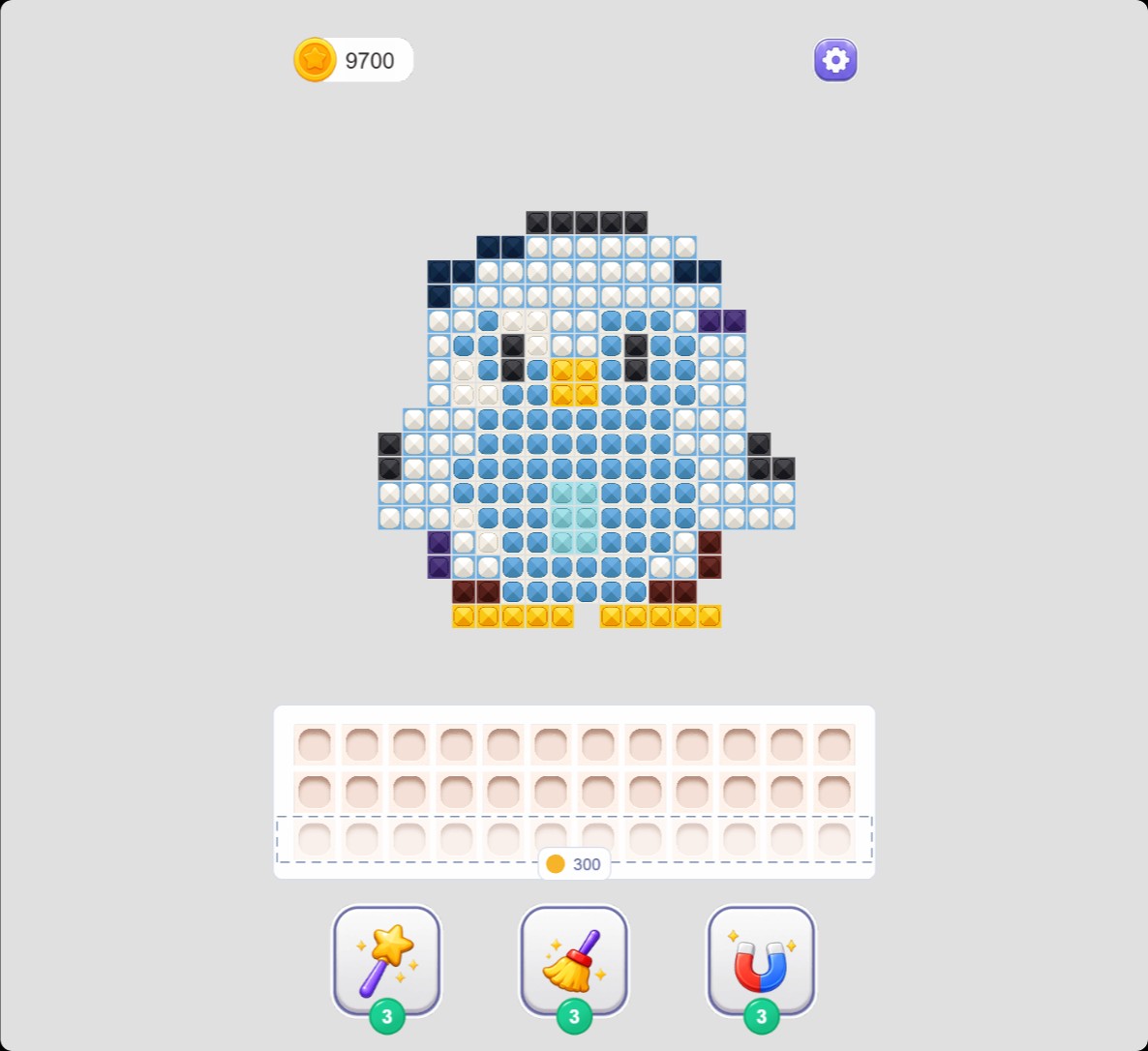
Coins for extra sorting space
Use Coins for the normal extra-row purchase and make more room for jewels in the tray.
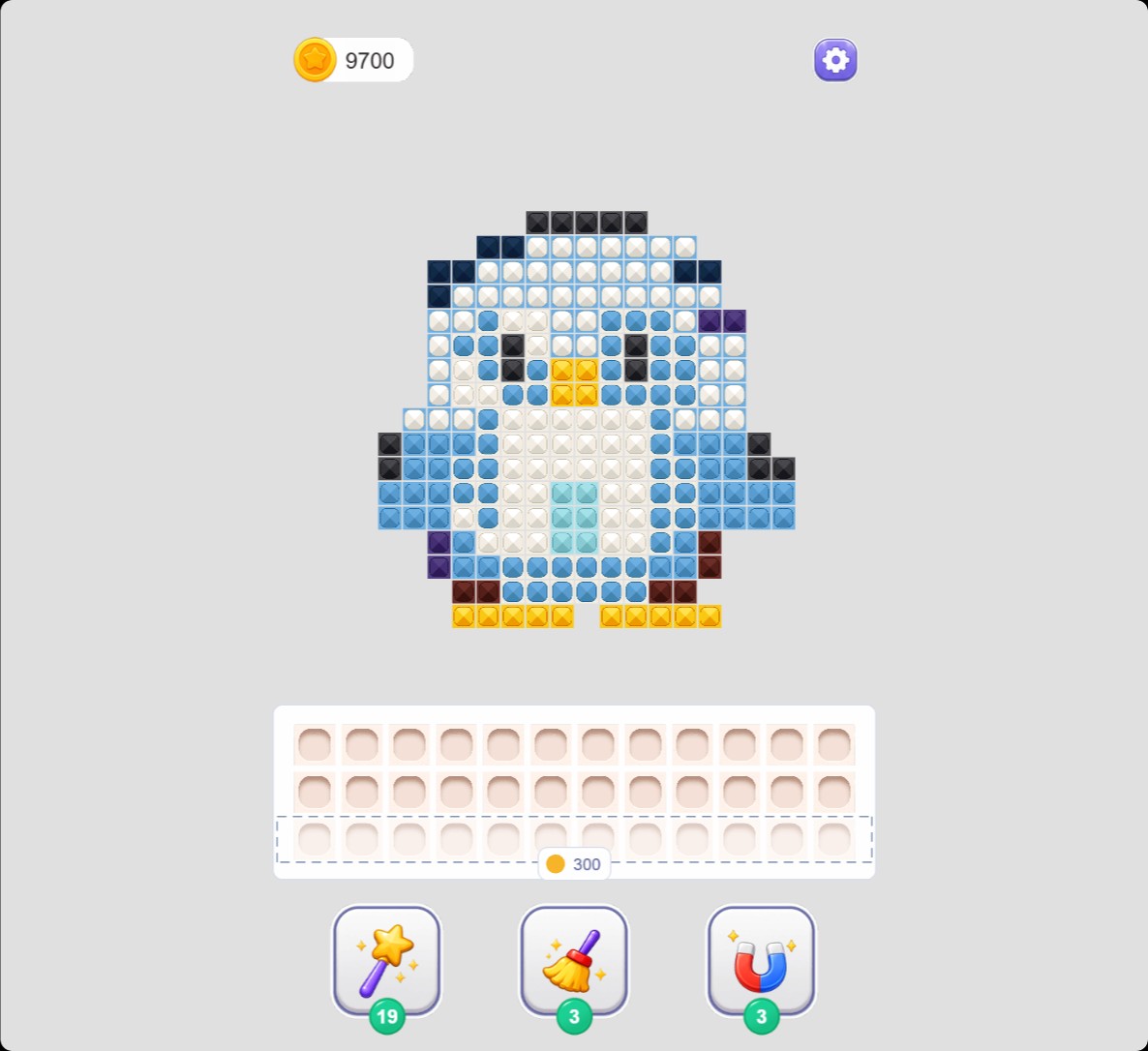
Wands for a tricky patch of gems
Choose an area with the Wand and let it put misplaced jewels into matching cells.
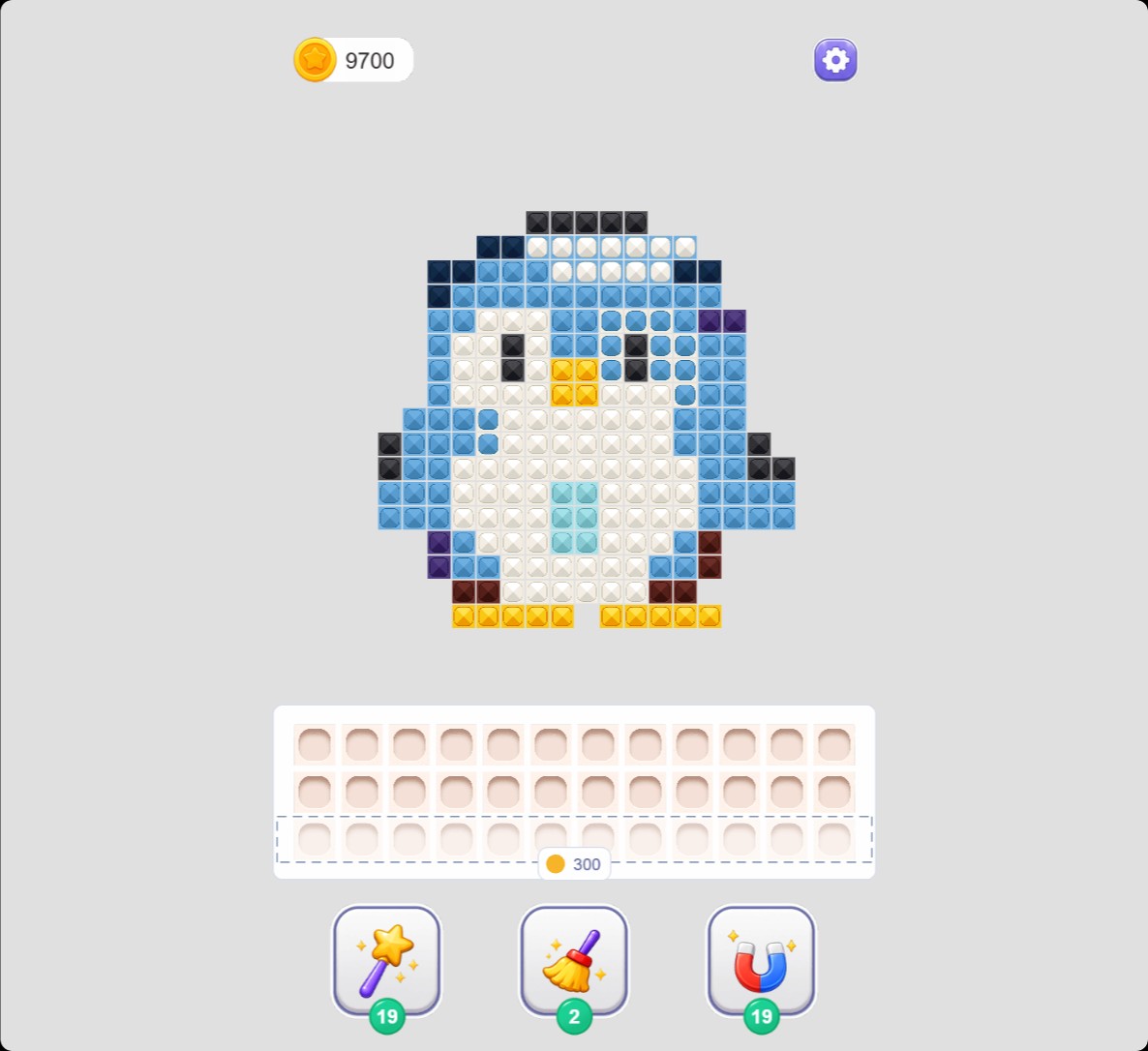
Magnets for misplaced jewels
Use a Magnet to put a group of misplaced jewels into matching cells.
Coins for sorting space
Choose a Coin balance from 0 to 1,000,000. Use the normal 300-Coin row purchase to expand the tray, up to the game's two extra rows per level.
Wands
Choose Wand stock from 0 to 10,000. Tap the Wand, move its selection over the area you want to correct and release. A successful use spends one Wand.
Magnets
Choose Magnet stock from 0 to 10,000. Tap the Magnet when jewels are misplaced to correct a group. A successful use spends one Magnet.
Available customisation options
CoinsFree
Set your Coin balance for normal tray expansion and tool payments.
Choose an amount, apply it and use the normal row purchase when you need more tray space.
WandsFree
Set Wand stock for correcting a selected area.
Apply an amount, tap the Wand, move its selection and release over misplaced jewels.
MagnetsFree
Set Magnet stock for correcting groups of misplaced jewels.
Apply an amount, then tap the Magnet while the board has misplaced jewels.
Questions about customisation options
- Does applying Coins buy a row?
- No. Use the normal row button to choose when to spend Coins.
- Do I still move gems myself?
- Yes. You can keep sorting groups through the tray and use the tools when you want help.
Using these features
Connect your game, then open Customise in the Windows app. Choose an option, check its available values and follow its instructions. Each option lists its own requirements and limits.
Setup for Crystal Canvas →