
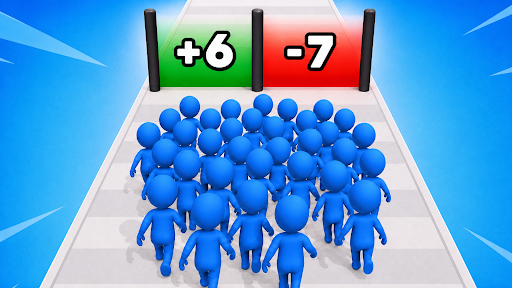
Set coins and choose your upgrades
Prepare your group between attempts with three separate settings. Spend coins through the normal shop, choose how many starting crowd upgrades to use, and select the magnet upgrade independently.
Requires the Windows app and the Bytonian Mods browser extension for Chrome or Edge. Browser setup guide
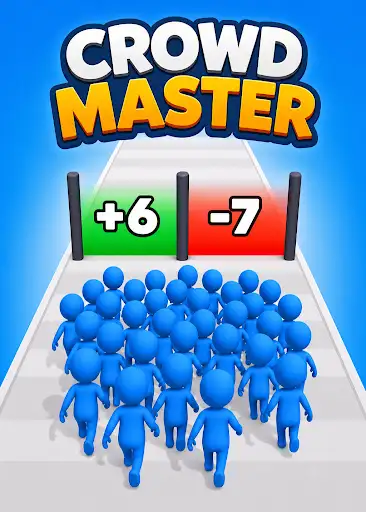
Coins for normal purchases
Set the balance you want to spend on crowd and magnet upgrades. Buy from the normal menu so you can choose which upgrade to improve next.
A larger starting group
Choose up to two starting crowd upgrades. The upgraded group appears at the starting line after the normal Restart flow, giving you more units before the first number gate.
Magnet upgrade selection
Choose up to two magnet upgrades and check the resulting level in the upgrade menu after restarting. Keep this setting separate from your crowd upgrade when preparing a run.
Available customisation options
CoinsFree
Set your coin balance to spend on normal crowd and magnet upgrades.
Apply the balance, then choose a purchase from the game's upgrade menu.
Starting Crowd UpgradesPremium
Choose up to two starting crowd upgrades for a larger group at the starting line.
Apply the setting and use the normal Restart flow to refresh your starting group.
Magnet UpgradesPremium
Choose up to two magnet upgrades independently of your starting crowd setting.
Apply the setting and use the normal Restart flow to view the upgraded magnet level.
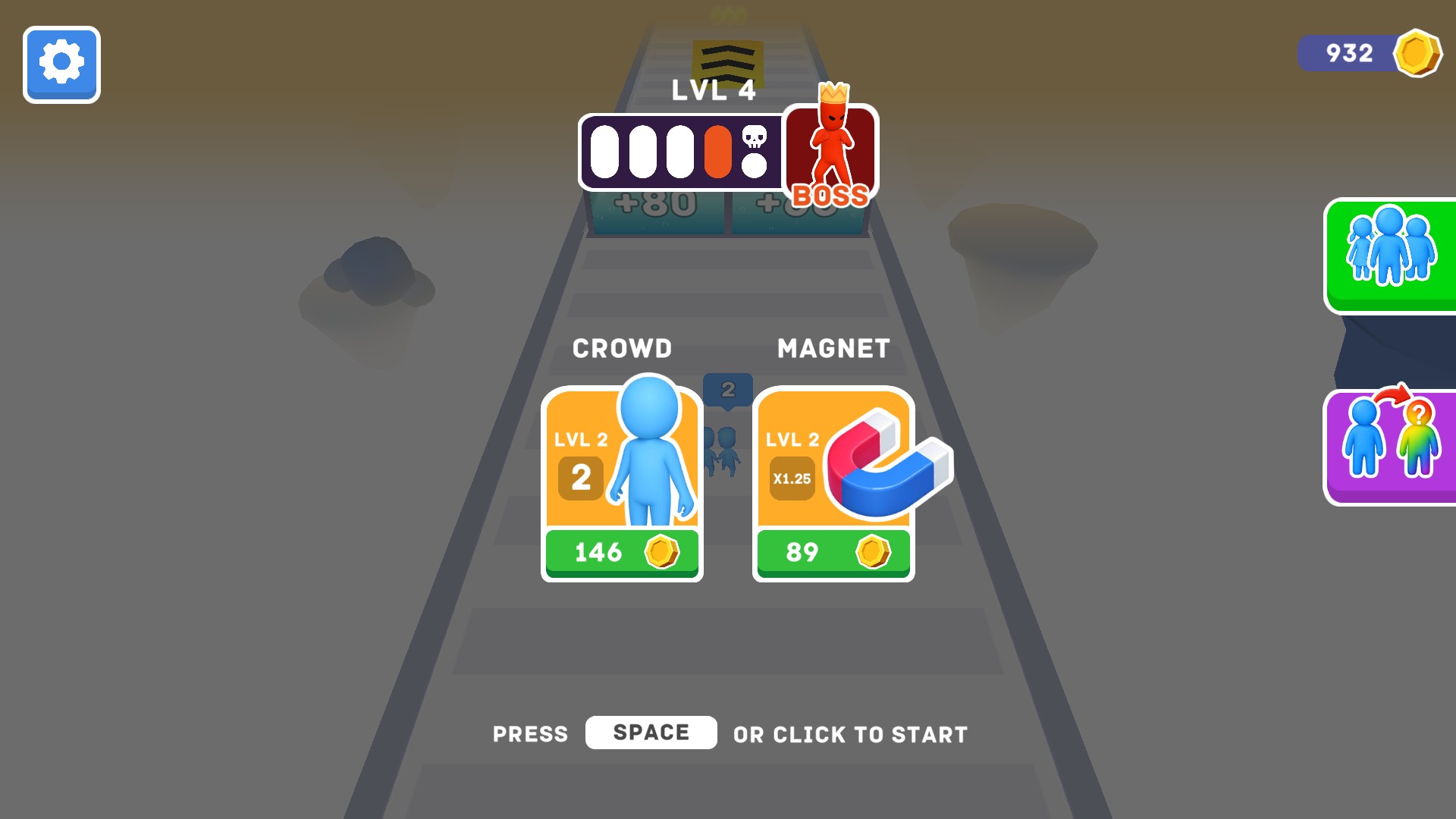
Spend coins on crowd upgrades
Set your coin balance, then use the normal upgrade menu to grow your starting crowd and improve your magnet.
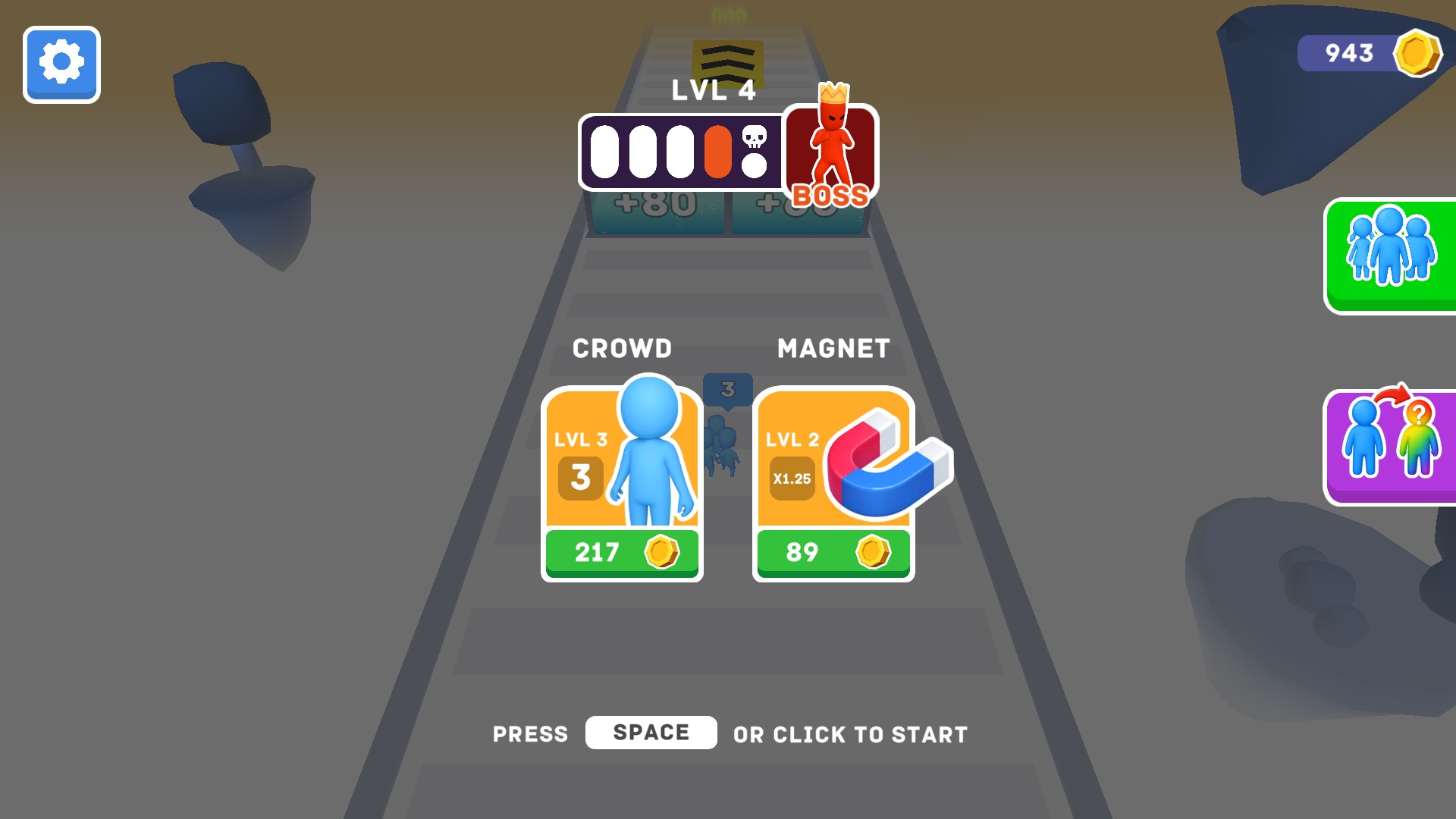
Begin with a bigger crowd
Adjust your starting crowd upgrades and use the normal restart flow to bring more units to the starting line.
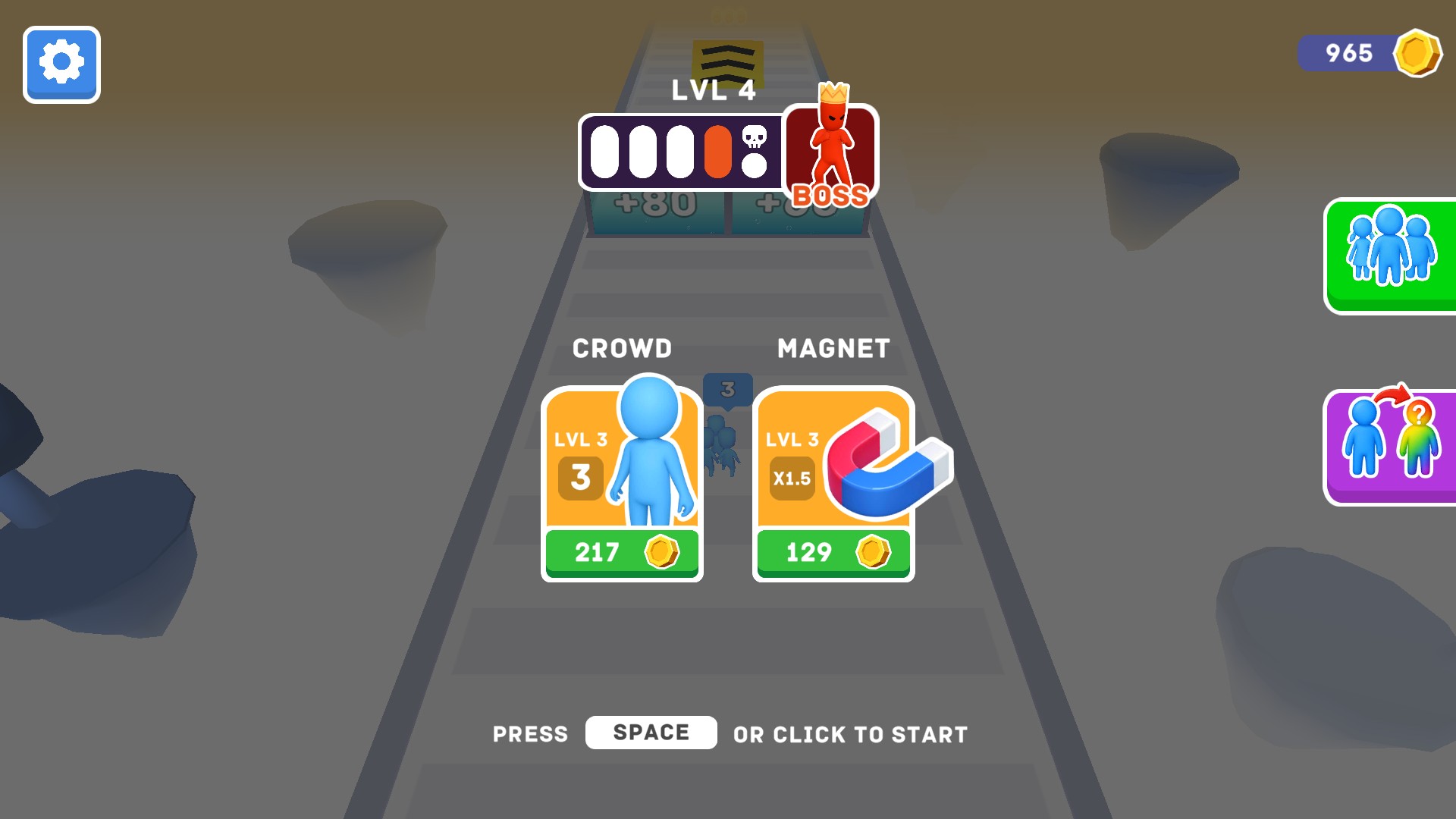
Choose your magnet upgrade
Adjust the magnet upgrade setting and view its level in the normal upgrade menu after restarting.
Questions about customisation options
- Why use Restart after changing an upgrade?
- The normal Restart flow refreshes the upgrade menu and starting group before you set off again.
Using these features
Connect your game, then open Customise in the Windows app. Choose an option, check its available values and follow its instructions. Each option lists its own requirements and limits.
Setup for Crowd Master →