

Choose your resource amounts
Choose coins or set the stock of Undo, extra-card, wildcard, Slice and Storm items separately. Use each item once the game’s normal tutorial and level requirements are met.
Requires the Windows app and the Bytonian Mods browser extension for Chrome or Edge. Browser setup guide

Adjust one resource at a time
Coins accepts amounts from 0 to 999,999. Each stock control accepts whole-number amounts from 0 to 9,999. Applying a quantity changes that amount once.
Keep playing through normal levels
Stock controls change quantities. They do not unlock item buttons or skip tutorial and level requirements.
Available customisation options
CoinsPremium
Set the coin balance displayed beside your card board.
Enter a whole-number balance and apply it.
Undo StockFree
Choose how many Undo items you have in stock.
Enter a whole-number quantity and apply it.
Normal tutorial and level requirements still apply to item controls.
Extra Card StockFree
Choose your stock of extra-card items.
Enter a whole-number quantity and apply it.
Normal tutorial and level requirements still apply to item controls.
Wildcard StockPremium
Choose how many wildcards you have in stock.
Enter a whole-number quantity and apply it.
Normal tutorial and level requirements still apply to item controls.
Slice StockPremium
Choose your stock of Slice boosters.
Enter a whole-number quantity and apply it.
Normal tutorial and level requirements still apply to item controls.
Storm StockPremium
Choose your stock of Storm boosters.
Enter a whole-number quantity and apply it.
Normal tutorial and level requirements still apply to item controls.
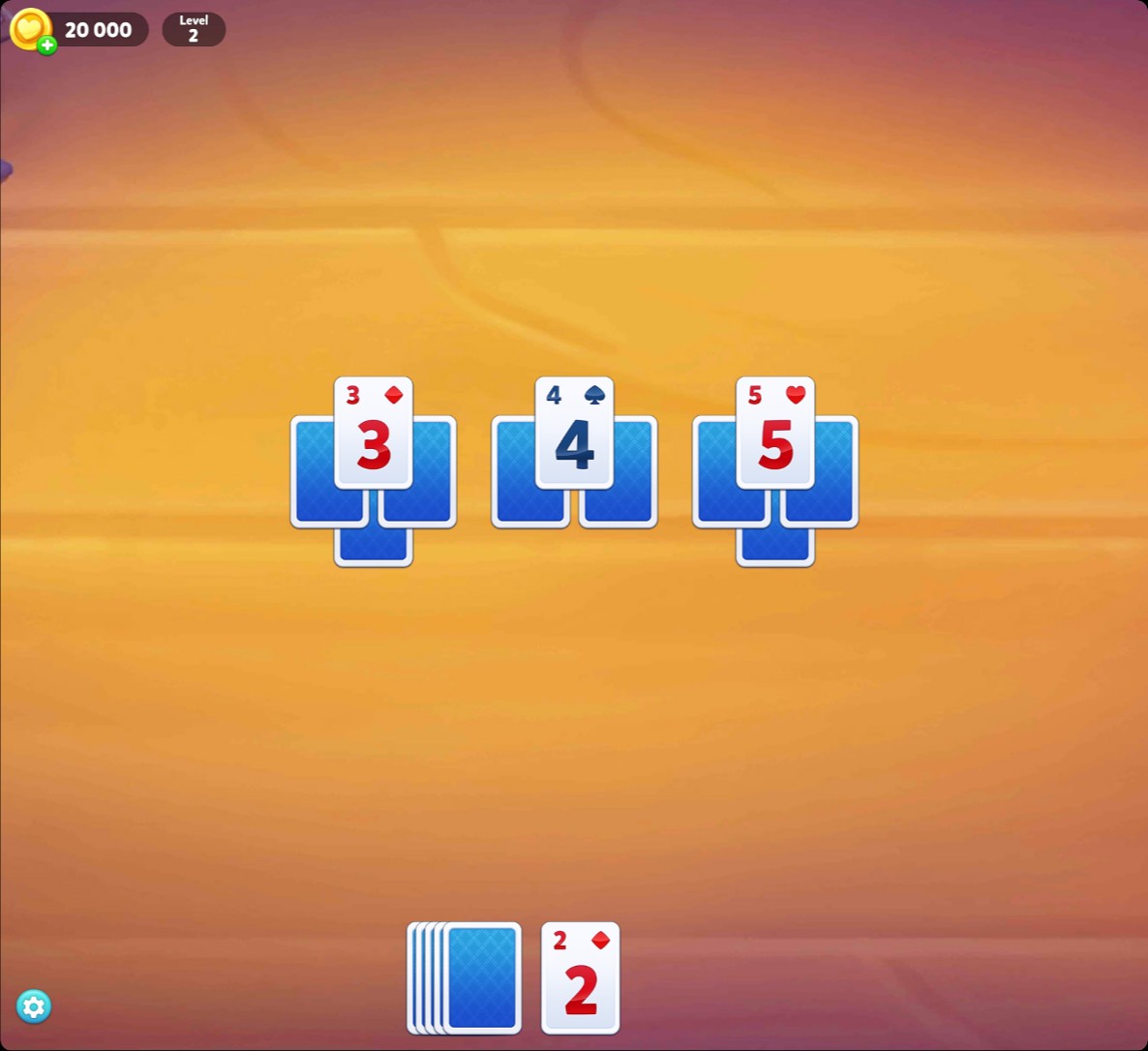
Choose Your Coin Balance
Set the coin balance shown beside your Solitaire TriPeaks Journey board.
Using these features
Connect your game, then open Customise in the Windows app. Choose an option, check its available values and follow its instructions. Each option lists its own requirements and limits.
Setup for Solitaire TriPeaks Journey →