

Choose coins and individual booster counts
Coins fund normal shop purchases. The seven separate booster controls choose how many uses you have, while the game's own menus decide when and where each boost is used.
Requires the Windows app and the Bytonian Mods browser extension for Chrome or Edge. Browser setup guide


Buy boosters with your chosen coin balance
Coins fund normal booster purchases. Buying three Dynamite boosts for 100 coins leaves a balance of 9,900.
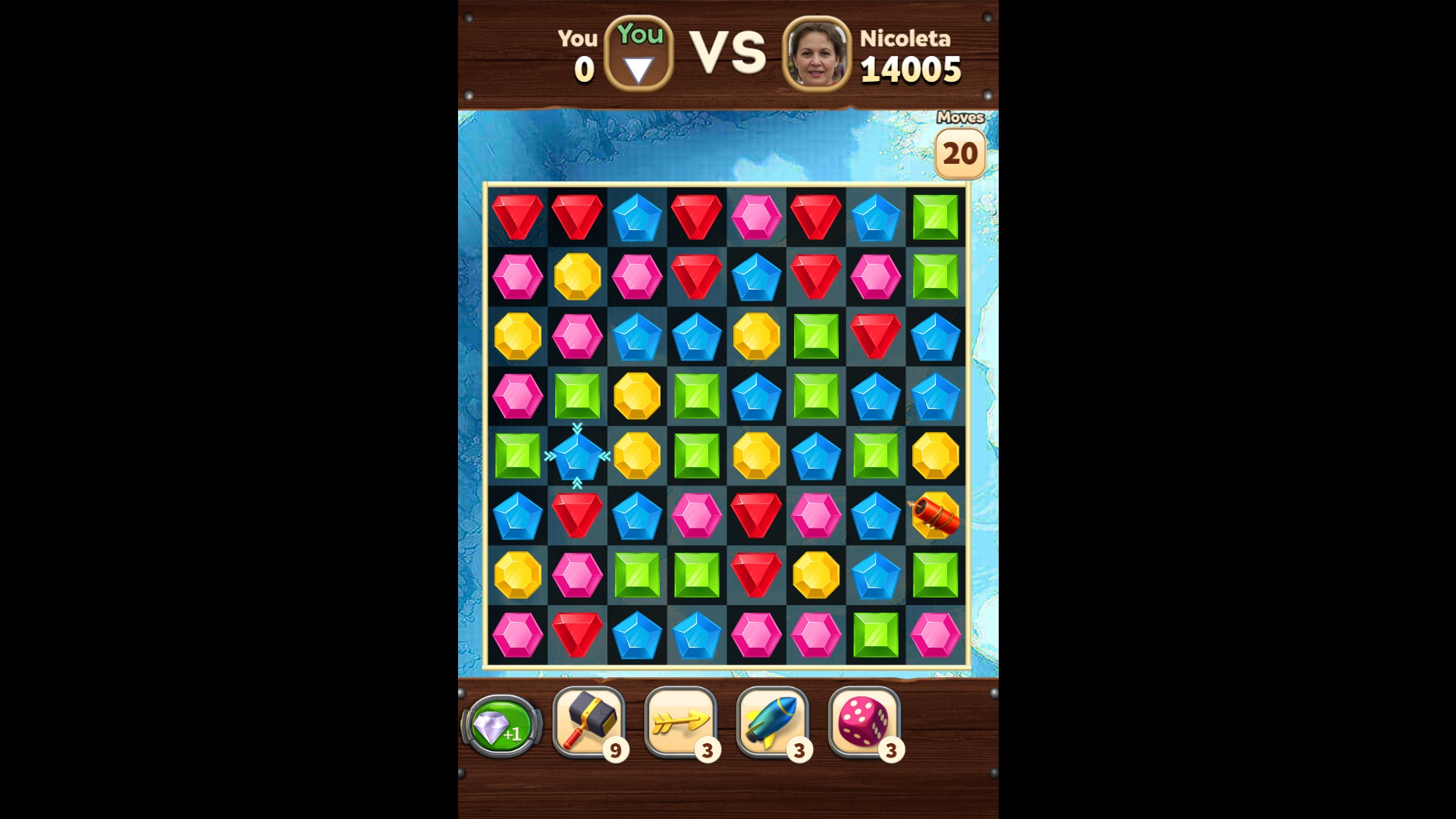
Remove a jewel with the Hammer tool
Choose Hammer stock, then use the normal tool on a jewel. One use leaves nine Hammers and lets the board refill.
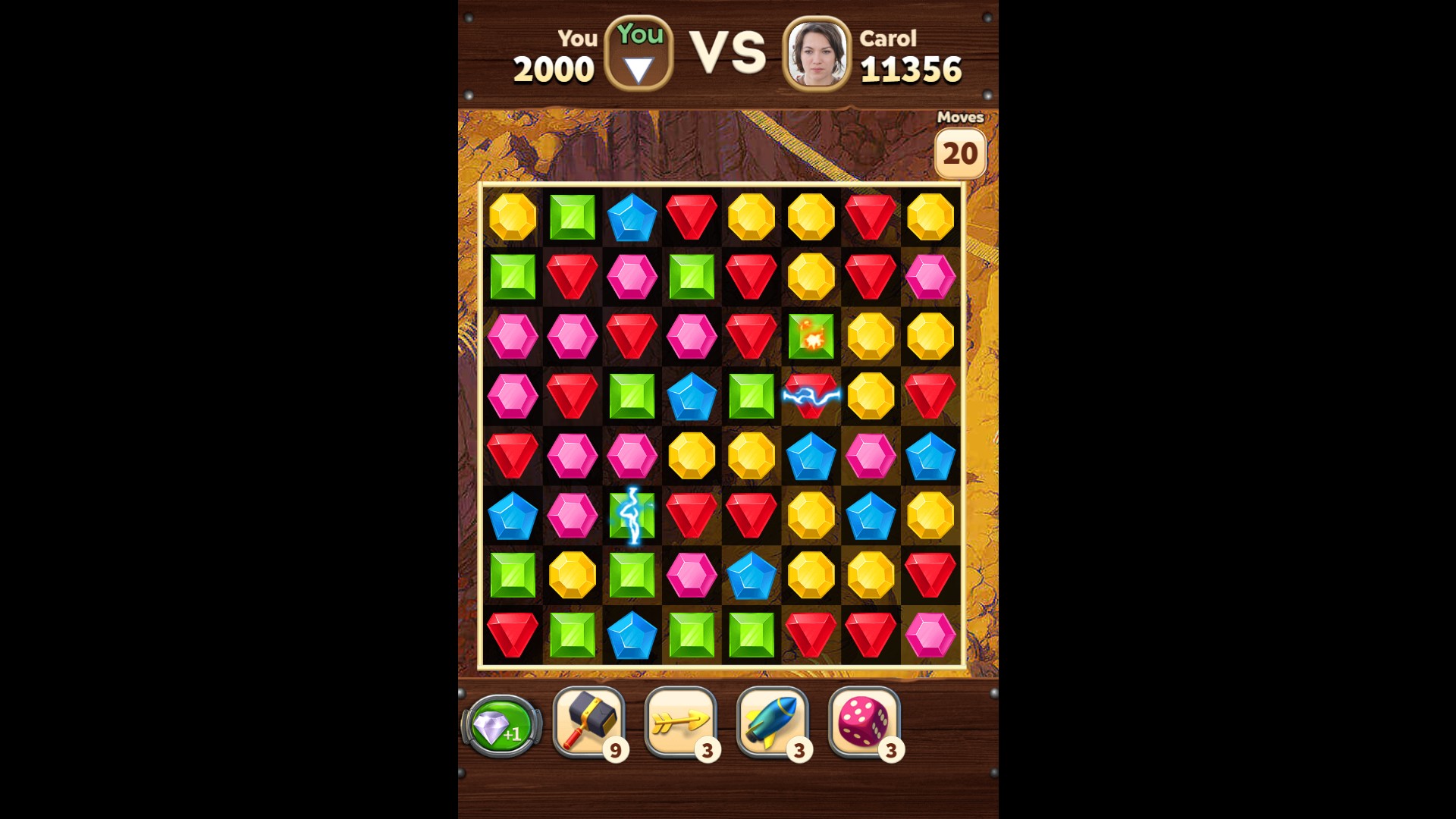
Start a round with Dynamite
Choose Dynamite stock and select the boost before playing to start with an explosive jewel on the board.
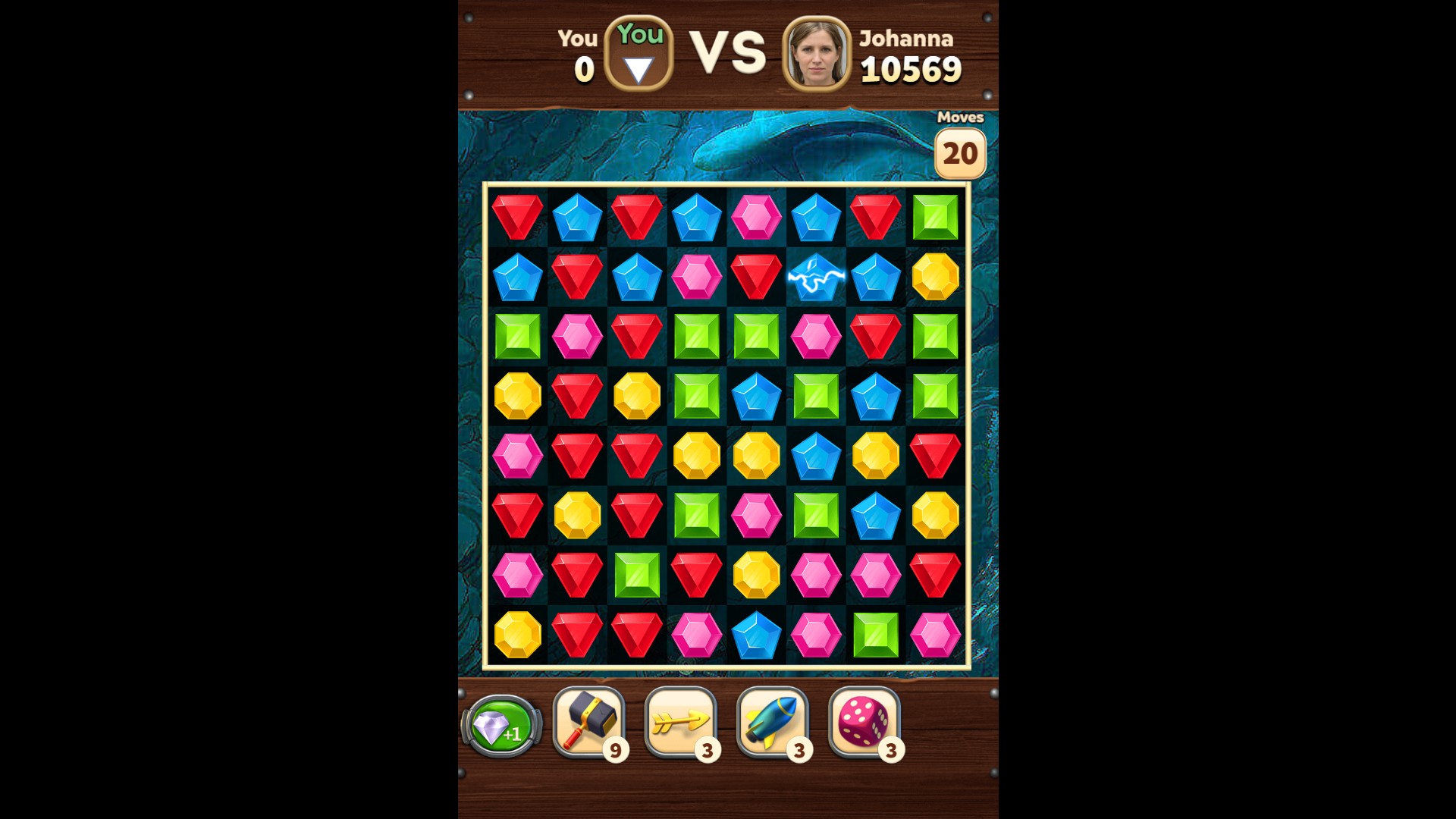
Start with a Lightning Jewel
Choose Lightning stock and select the pre-round boost to begin with a Lightning Jewel on the board.
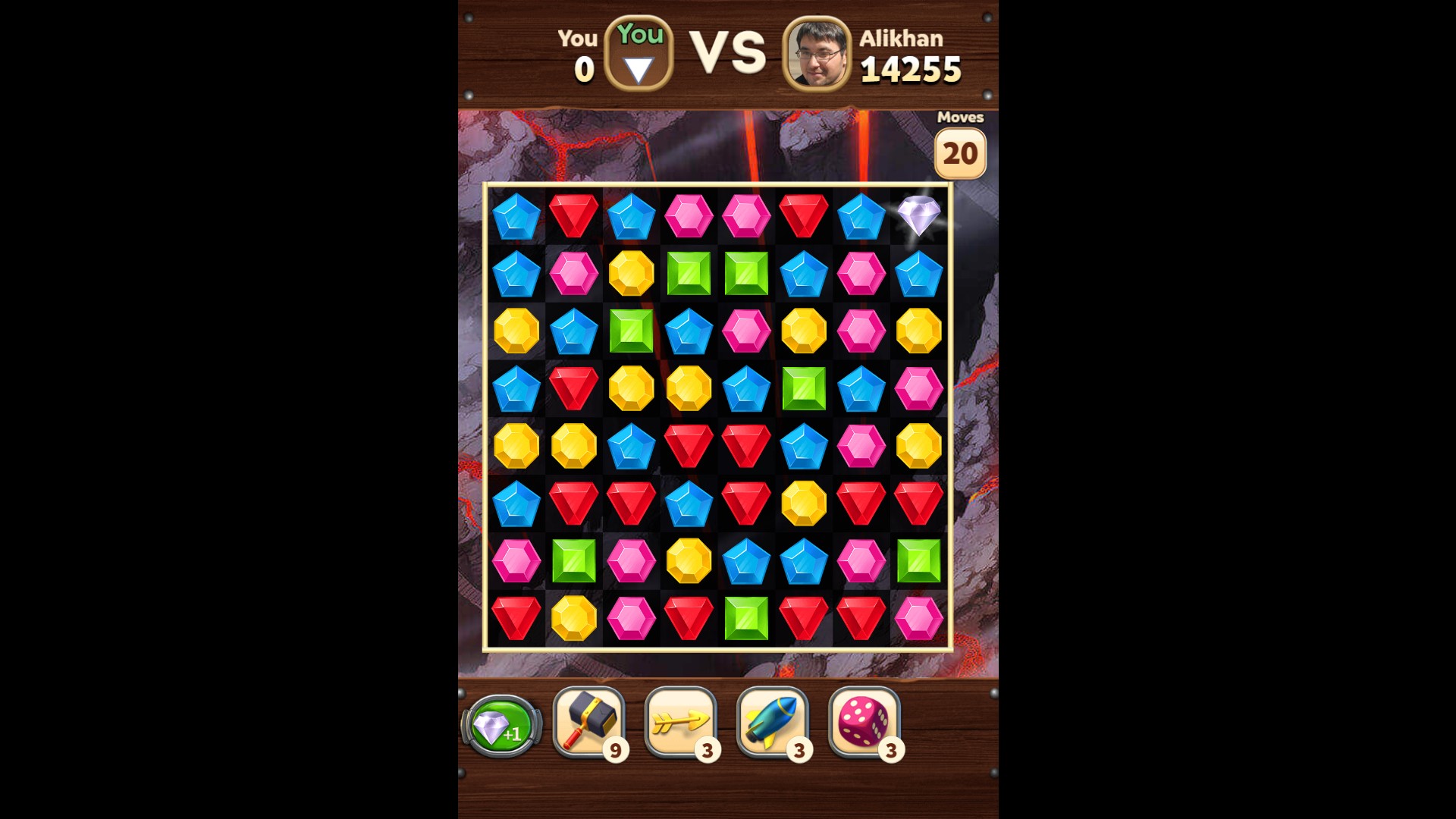
Start a round with a Super Jewel
Choose Super Jewel stock, then select the boost before playing to start with a Super Jewel on the board.
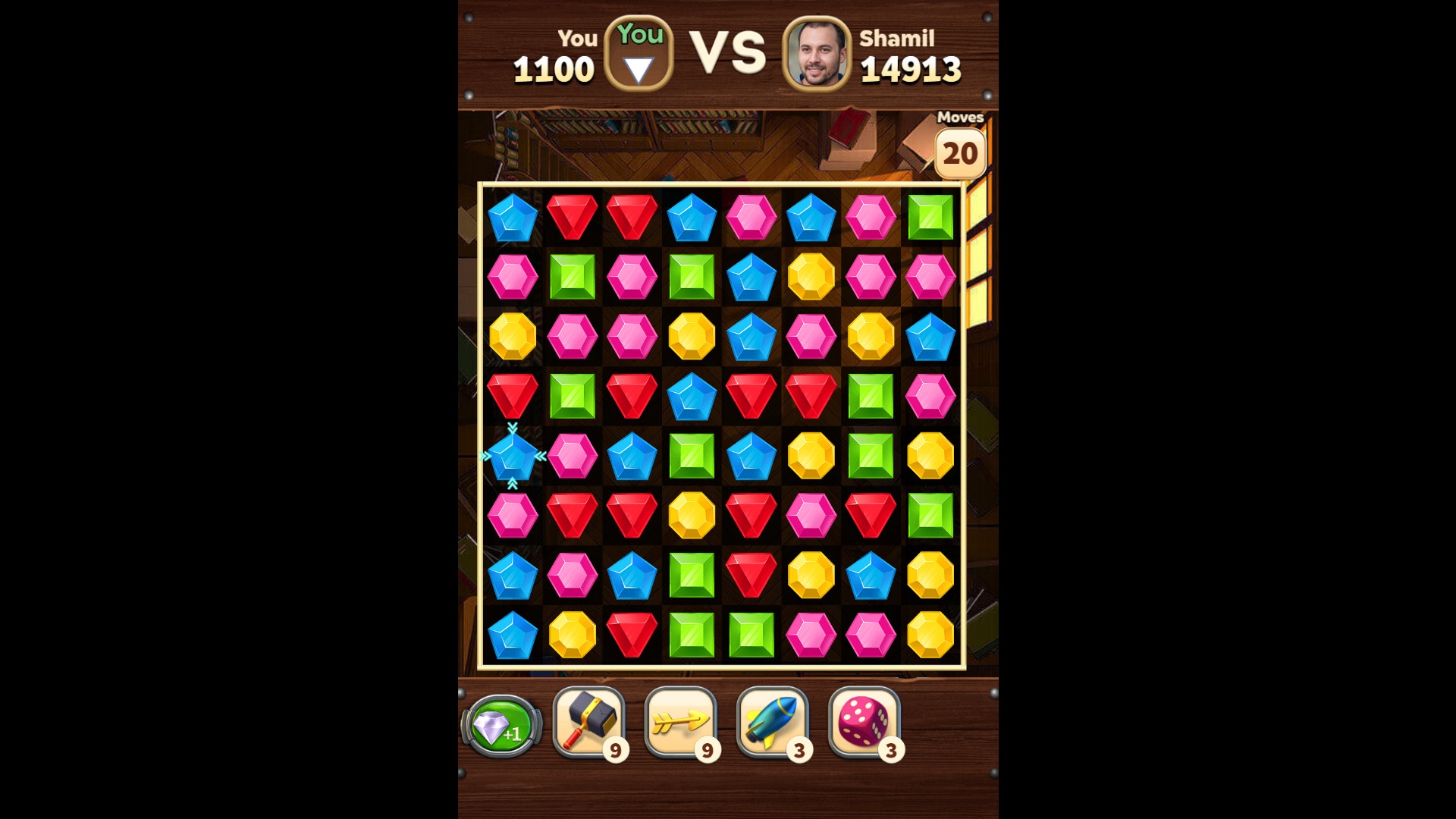
Clear a row with the Arrow tool
Choose Arrow stock, then select a row with the normal tool. One row clear leaves nine Arrows.
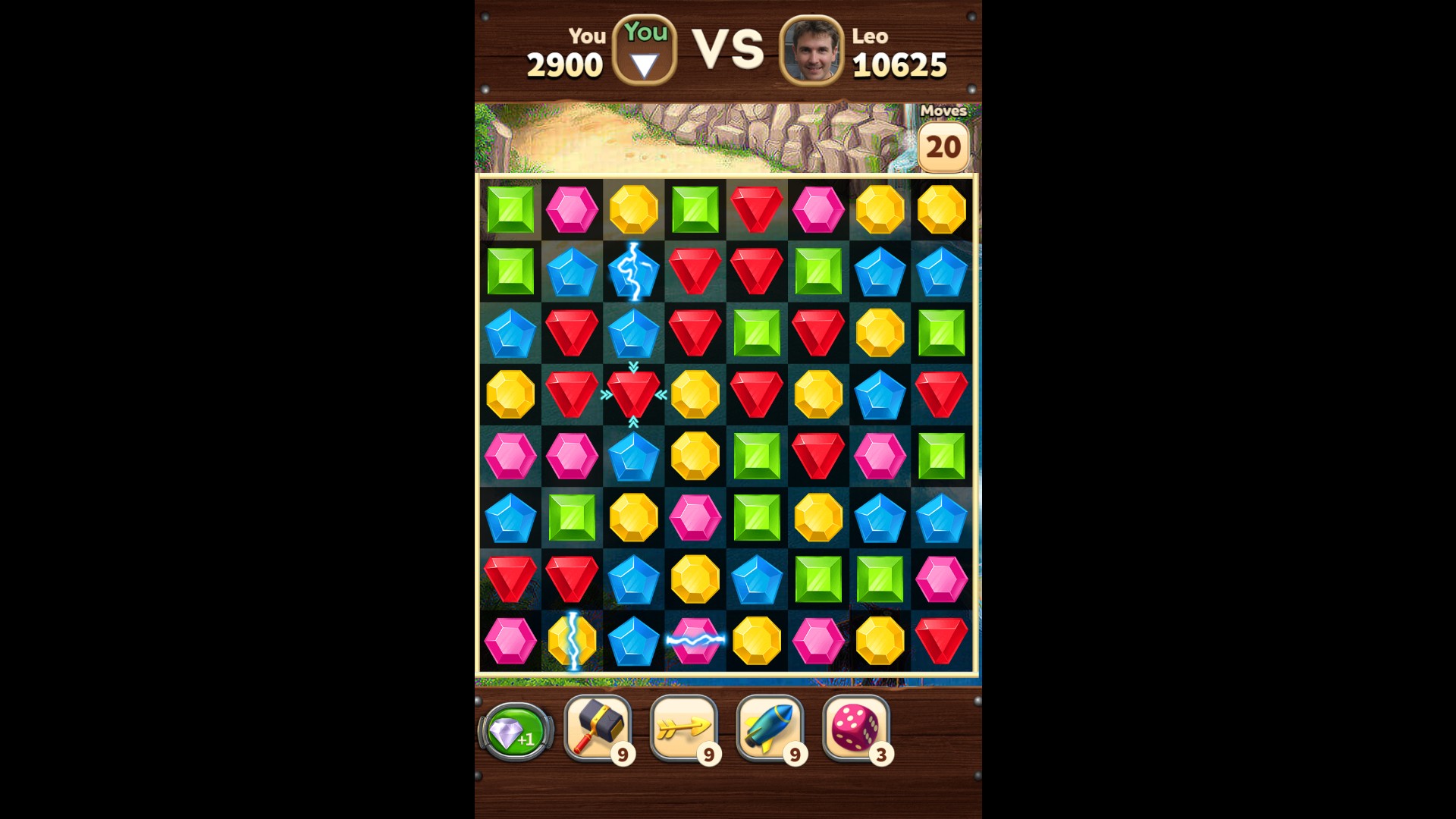
Clear a column with the Rocket tool
Choose Rocket stock, then select a column with the normal tool. One column clear leaves nine Rockets.
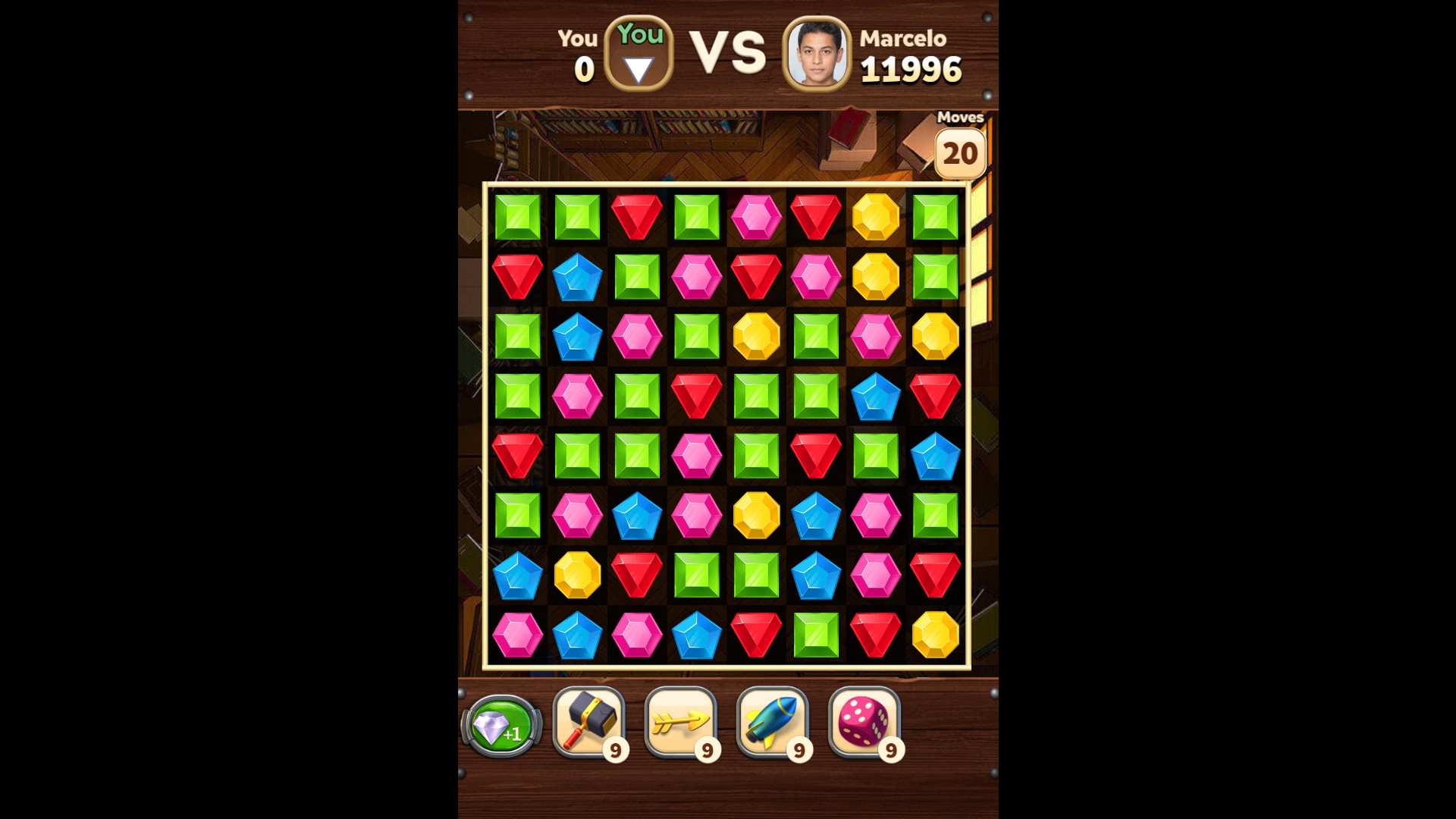
Rearrange the board with Shuffle
Choose Shuffle stock, select the normal tool and tap the board to rearrange the jewels. One use leaves nine Shuffles.
Shop with your chosen coin balance
Set Coins from 0 to 99,999, then buy the booster you want at its displayed price. For example, buying three Dynamite boosts for 100 coins from a balance of 10,000 leaves 9,900.
Coins is Free. The individual booster-stock controls are Premium and accept whole-number counts from 0 to 1,000.
Select a starting boost before Play
Dynamite, Lightning and Super Jewels are selected on the mission preparation screen. Choose the boost you want, check its selection mark, then press Play.
The round starts with the selected special jewel on the board. Selecting a starting boost uses one from its stock.
Target a jewel, row or column
During a round, select Hammer and tap a jewel to remove it. Select Arrow and tap a row to clear it, or select Rocket and tap a column to clear it.
For Shuffle, select the tool and tap the board when prompted. The jewels rearrange and one Shuffle is used.
Create the first stock through normal play
Earn coins normally before changing the balance. Buy each booster through the normal shop, or earn a Hammer reward, before changing that stock.
Setting a stock amount prepares its supply. Select and use the corresponding tool in the game when you want its effect.
Available customisation options
CoinsFree
Choose coins for normal booster purchases.
Set a whole-number balance from 0 to 99,999, then buy boosters at the displayed coin price.
Earn coins through normal play first.
HammersPremium
Choose Hammer stock for removing a selected jewel.
Set stock from 0 to 1,000. During a round, select Hammer and tap the jewel to remove.
Earn a Hammer reward or buy the first stock before editing it.
DynamitePremium
Choose Dynamite stock for an explosive jewel at the start of a round.
Set stock from 0 to 1,000, then select Dynamite on the mission preparation screen before pressing Play.
Buy the first Dynamite stock through the normal shop before editing it.
LightningPremium
Choose Lightning stock to start a round with a Lightning Jewel.
Set stock from 0 to 1,000, then select Lightning before pressing Play.
Buy the first Lightning stock through the normal shop before editing it.
Super JewelsPremium
Choose Super Jewel stock for a Super Jewel at the start of a round.
Set stock from 0 to 1,000, then select Super Jewel before pressing Play.
Buy the first Super Jewel stock through the normal shop before editing it.
ArrowsPremium
Choose Arrow stock for clearing a selected row.
Set stock from 0 to 1,000. During a round, select Arrow and tap the row to clear.
Buy the first Arrow stock through the normal shop before editing it.
RocketsPremium
Choose Rocket stock for clearing a selected column.
Set stock from 0 to 1,000. During a round, select Rocket and tap the column to clear.
Buy the first Rocket stock through the normal shop before editing it.
ShufflesPremium
Choose Shuffle stock for rearranging the board.
Set stock from 0 to 1,000. Select Shuffle during a round, then tap the board to rearrange its jewels.
Buy the first Shuffle stock through the normal shop before editing it.
Questions about customisation options
- Why does a booster count fall after I use it?
- Each normal use spends stock. A starting boost also uses one when selected on the mission preparation screen.
- Does changing booster stock use the tool automatically?
- No. Select starting boosts before pressing Play, or choose the board tool and its target during a round.
Using these features
Connect your game, then open Customise in the Windows app. Choose an option, check its available values and follow its instructions. Each option lists its own requirements and limits.
Setup for Jewels Planet →