

Choose booster stock and unlock skins
Choose your arrow and shield booster stock, or open the 27 current skins. Apply a control to reload the game with your choice.
Requires the Windows app and the Bytonian Mods browser extension for Chrome or Edge. Browser setup guide

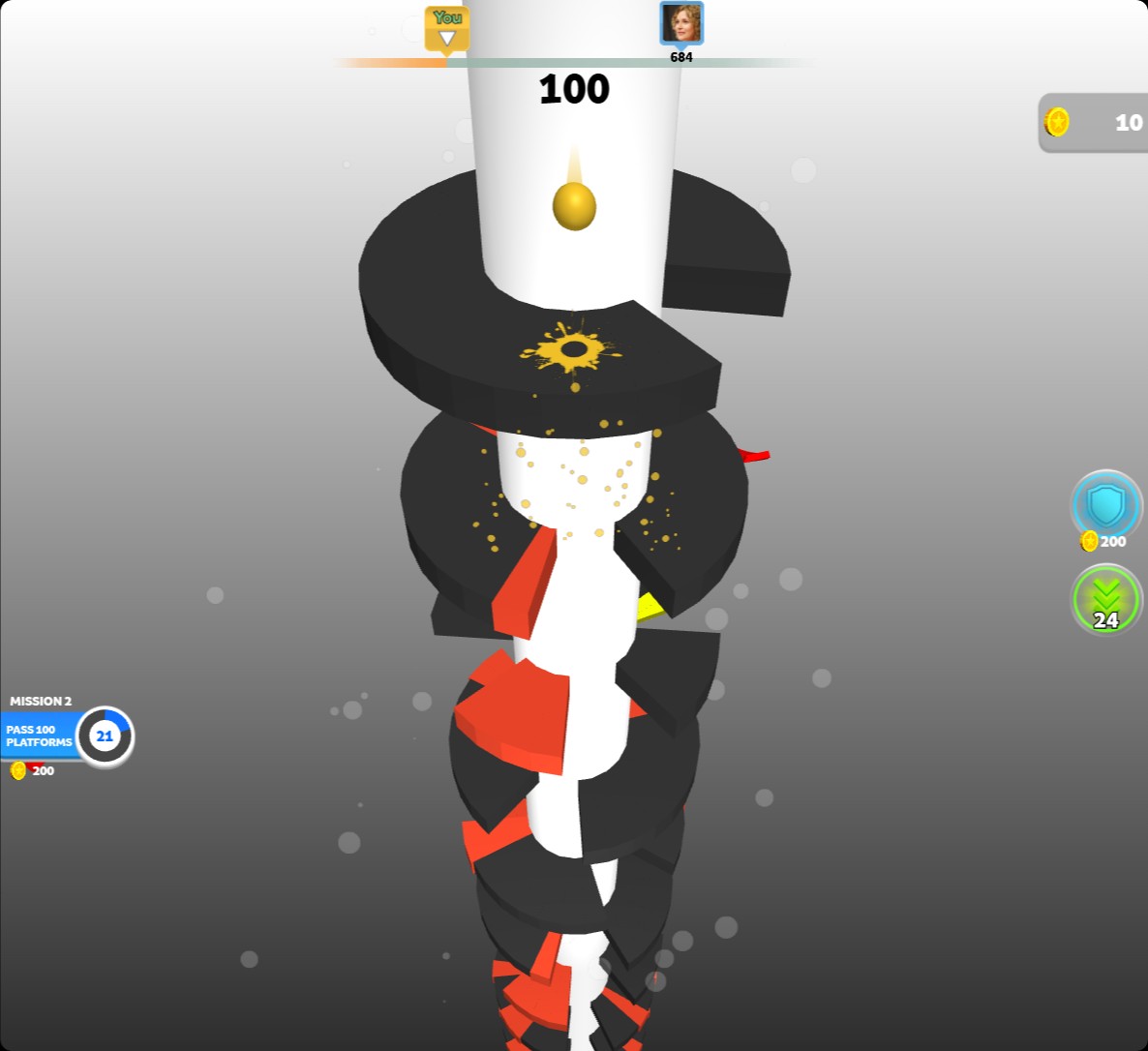
Arrow boosters ready to use
Choose your stock of arrow boosters, then use the green arrow button during a run. One use leaves 24 of the 25 boosters ready.
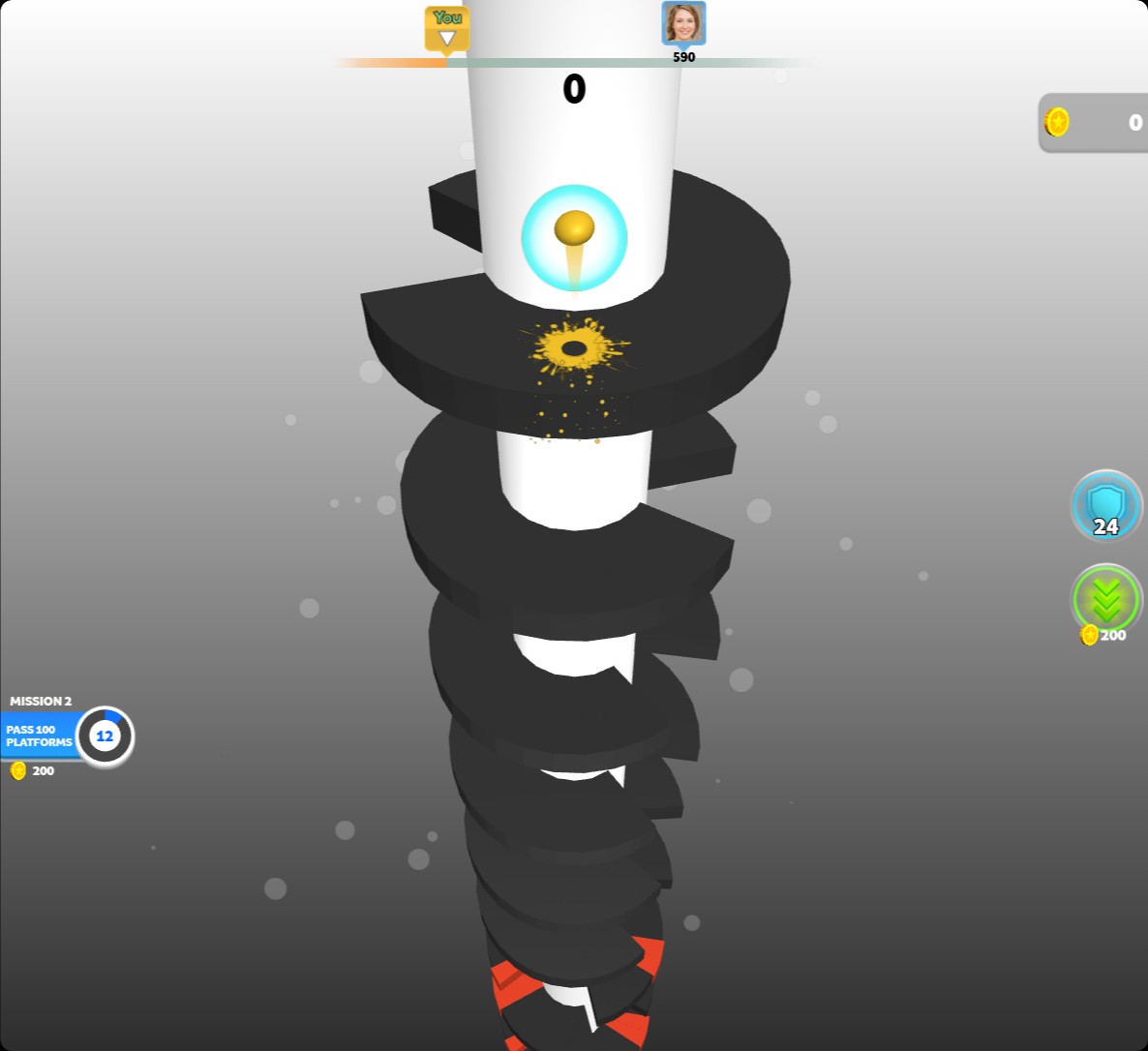
Shields ready for your run
Set your shield stock, then press the blue shield button during play. Here, a shield surrounds the ball with 24 left to use.
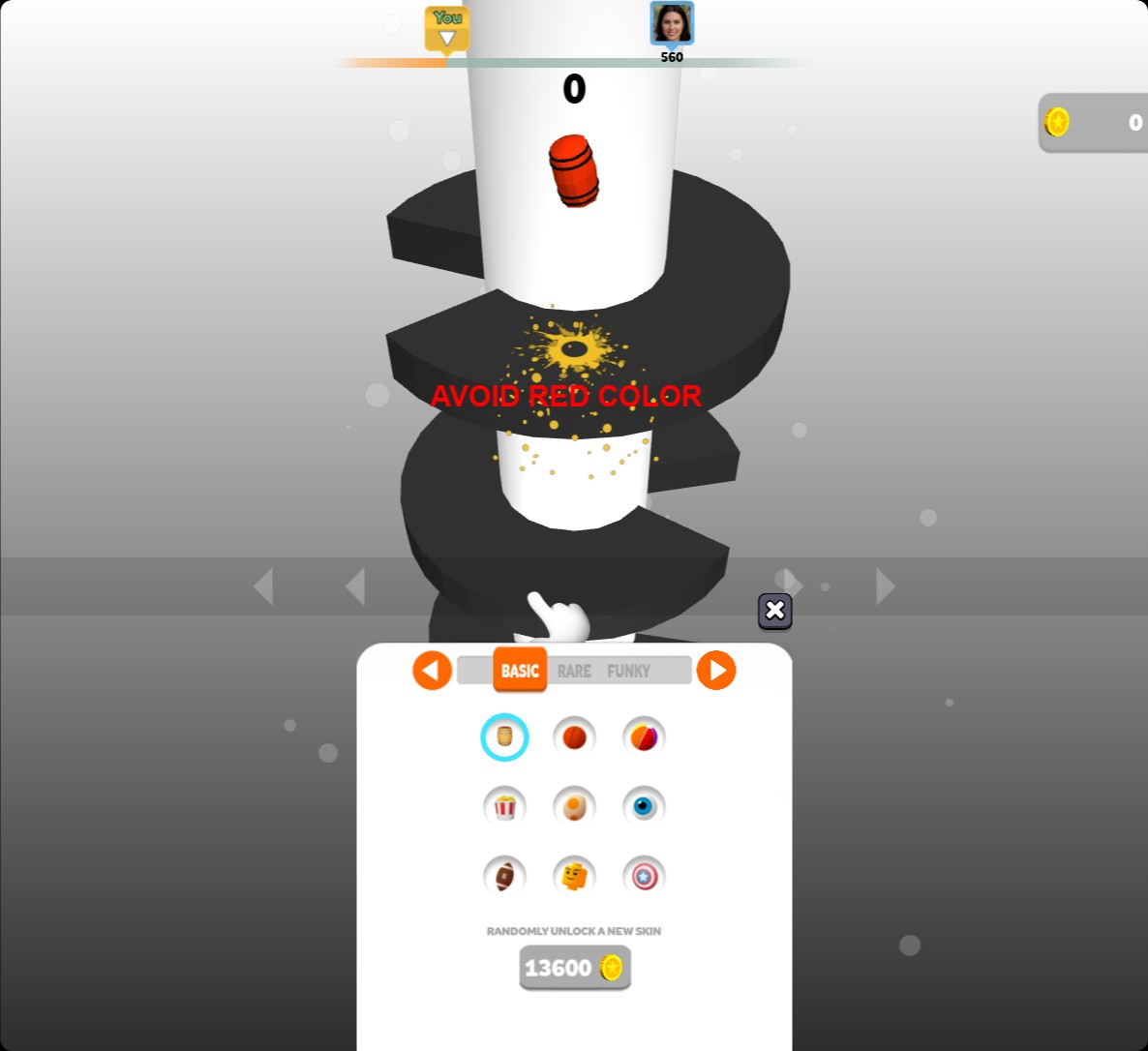
Pick a different look
Unlock the 27 current skins and choose one in the skin shop. Here, the Barrel skin replaces the normal ball.
Arrow Boosters
Enter a whole-number stock from 0 to 999. During a run, press the green arrow button to use one booster.
Shield Boosters
Choose a stock from 0 to 999, then press the blue shield button during a run. Each activation uses one shield.
Unlock All Skins
Apply the unlock, open the skin shop and choose from the 27 current Basic, Rare and Funky skins. Select an icon to change your ball's appearance.
Check your stock when returning
The game can reset booster stock when you reopen it. Check the buttons and apply your preferred stock again if needed.
Available customisation options
Arrow BoostersFree
Choose your stock of arrow boosters.
Enter a whole number from 0 to 999 and apply. After reload, start a run and use the green arrow button. Check stock when reopening and reapply if it resets.
Shield BoostersFree
Choose how many shields you have ready.
Enter a whole number from 0 to 999 and apply. After reload, start a run and use the blue shield button. Check stock when reopening and reapply if it resets.
Unlock All SkinsFree
Open all 27 current skins for normal shop selection.
Apply to reload, open the skin shop and select a skin from Basic, Rare or Funky.
Questions about customisation options
- Does applying a control restart the game?
- Yes. Applying reloads Helix Jump.
- Where do I choose an unlocked skin?
- Open the skin shop, browse the Basic, Rare and Funky choices, then select a skin icon.
Using these features
Connect your game, then open Customise in the Windows app. Choose an option, check its available values and follow its instructions. Each option lists its own requirements and limits.
Setup for Helix Jump →