
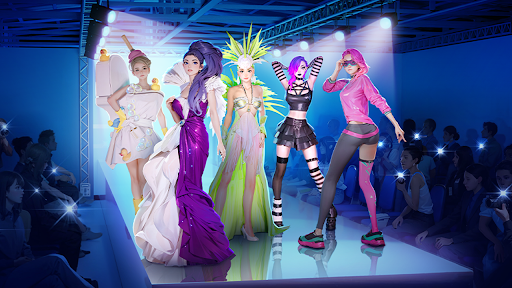
Customise
1 optionSet your gem balance for menu upgrades and model-shop unlocks.
View customisation options →Choose your Gems balance for normal menu upgrades and random model unlocks. Spend your gems in the shop, then return to Fashion Queen's catwalk challenges.
Requires the Windows app and the Bytonian Mods browser extension for Chrome or Edge. Browser setup guide
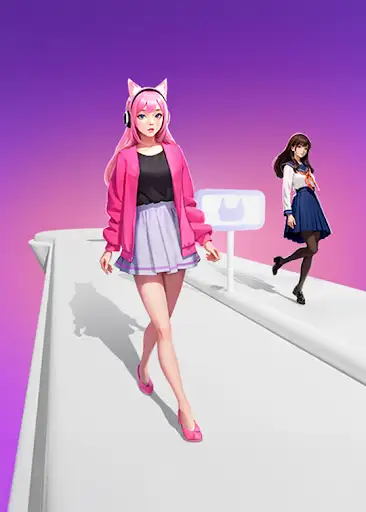
Start with free mods
Download Bytonian Mods for Windows and try these free features. Choose one to see how it works and any requirements.
Choose your gem balance for normal upgrades and shop purchases.
Enter your Gems amount, apply it and return to the game's gem counter.
Normal shop prices and upgrade requirements still apply.
The Free Gems setting lets you enter the balance you want. Apply your amount, return to the game and choose how to spend it.
Spend gems through the menu's upgrade buttons or unlock a random model in the shop. Normal prices and requirements still apply, and you continue the regular catwalk challenges.
Set your gem balance for menu upgrades and model-shop unlocks.
View customisation options →Download the Windows app and follow the setup prompts.
Set up the browser extension in Chrome or Edge, then open the supported YouTube Playable. Follow the connection guide if the game is already running.
Open Customise in Bytonian Mods, choose an option and follow its instructions. Check the available values and any limits before making your change.