
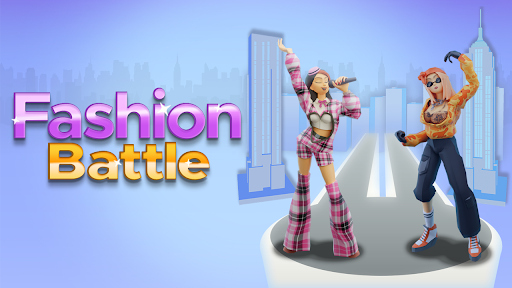
Choose the gems shown on your runway
Set the gem amount you want to see in Fashion Battle before your next themed runway battle. Enter a whole number and use Apply & reload to see your chosen amount in the top-right counter.
Requires the Windows app and the Bytonian Mods browser extension for Chrome or Edge. Browser setup guide

Choose your value
Enter a whole number from the available range, apply the change, and wait for the game to reload. The gem counter in the top-right corner should show your selection.
Check your gems on the runway
Check the top-right gem counter after the game reloads, before choosing your outfit. A new browser session may show a different balance; apply the control again if you want the same amount there.
Available customisation options
GemsFree
Choose the gem amount shown in Fashion Battle's top-right counter after the game reloads.
Enter a whole number, select Apply & reload, then check the top-right gem counter.
A new browser session may show a different gem balance. Apply the control again there if you want the same amount.
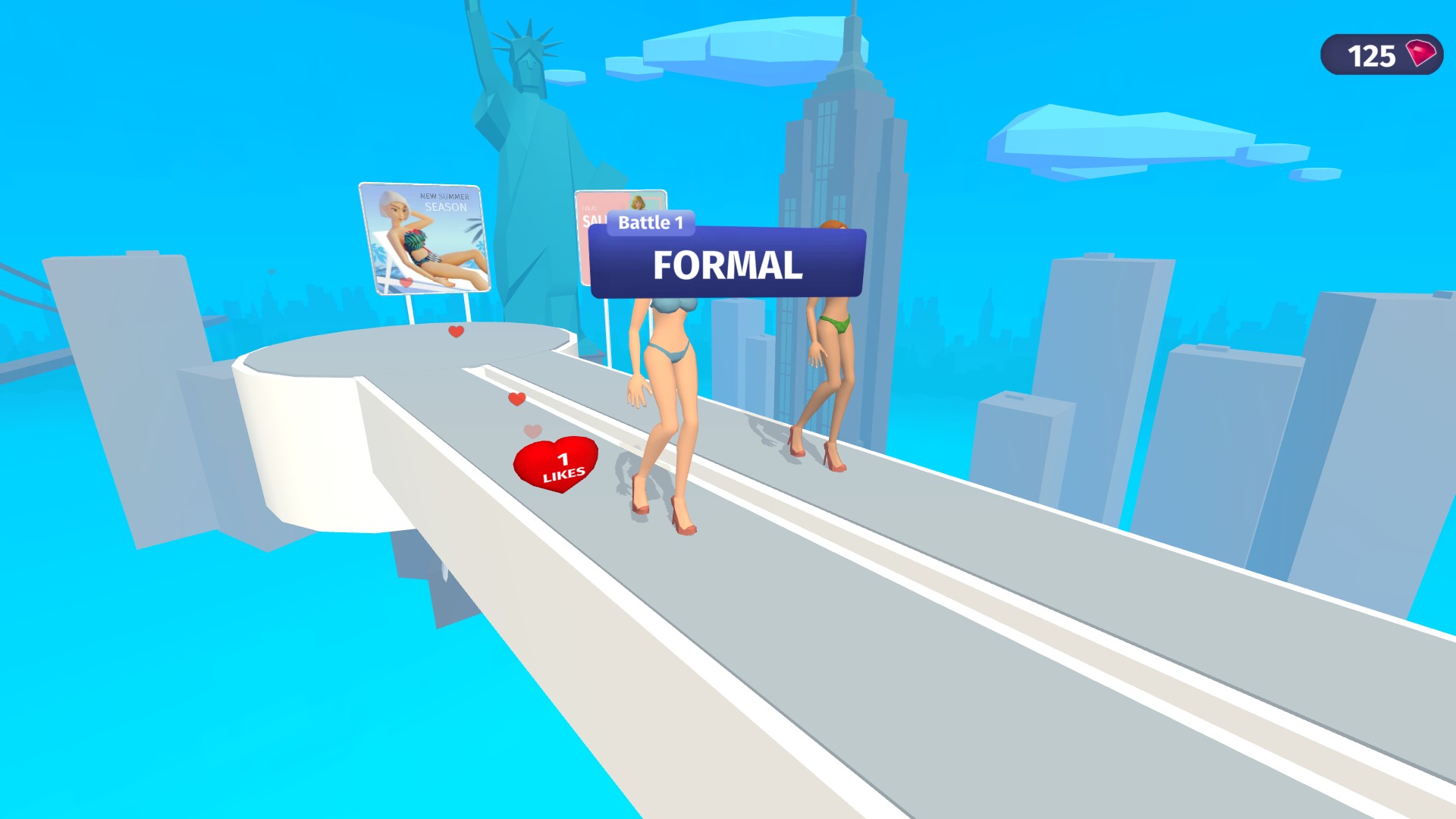
Start with more gems
Set your gem balance before the next fashion battle. This look starts with 125 gems ready in the top-right corner.
Questions about customisation options
- Is the Gems control free?
- Yes. The Fashion Battle Gems control is available as the free customization option.
- Does it unlock outfits or themes?
- No. It changes the gem counter only and does not directly unlock outfits, themes or progress.
Using these features
Connect your game, then open Customise in the Windows app. Choose an option, check its available values and follow its instructions. Each option lists its own requirements and limits.
Setup for Fashion Battle →