
Choose how many puzzle tools to keep ready
Set your Add Slot and Clear Slot quantities, apply your changes and return to the puzzle. Use the matching tool buttons when you need more temporary space or a clear tray.
Requires the Windows app and the Bytonian Mods browser extension for Chrome or Edge. Browser setup guide
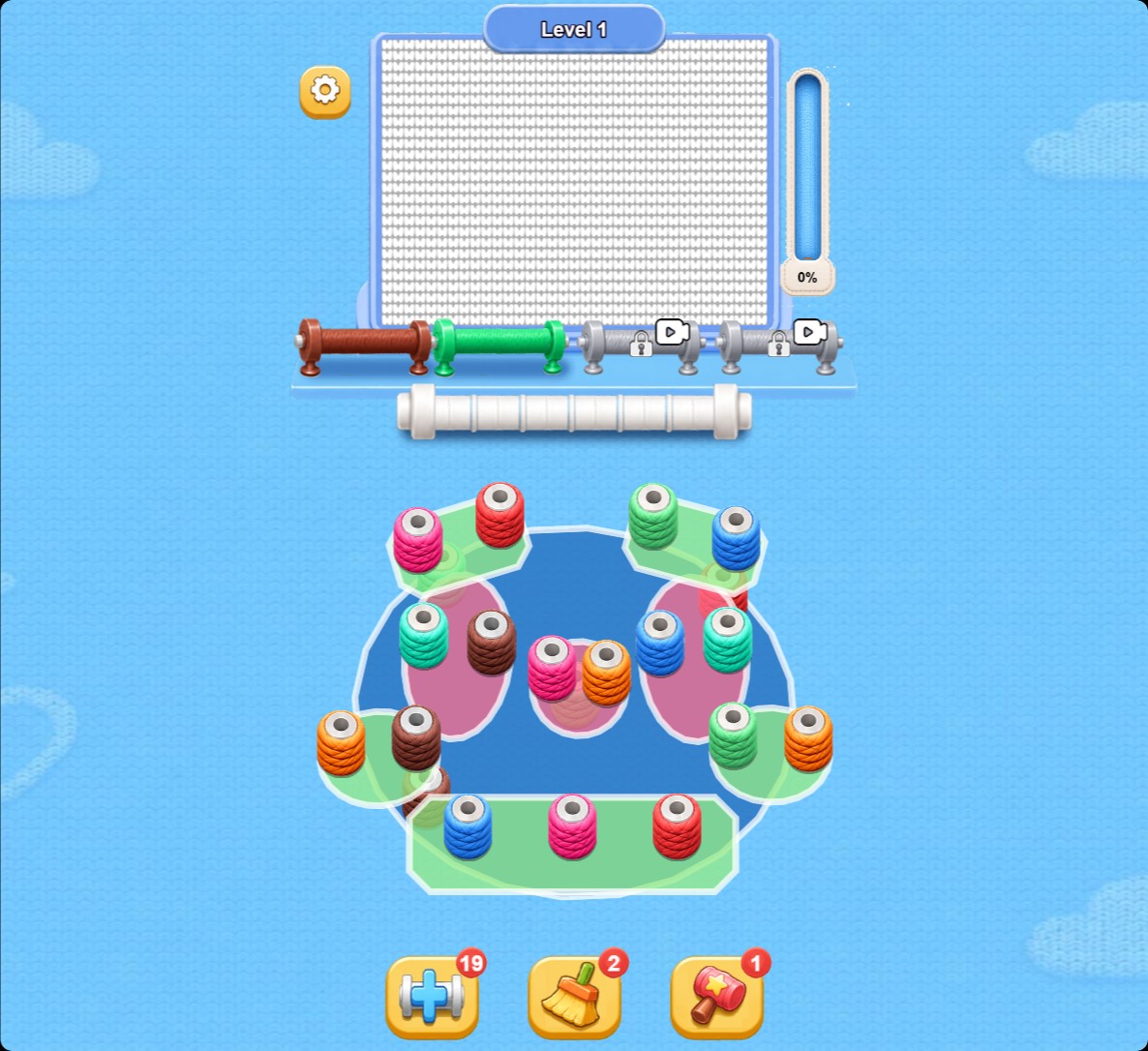
More room on the temporary tray
Use an Add Slot item to widen the temporary tray, with more items ready for later puzzles.
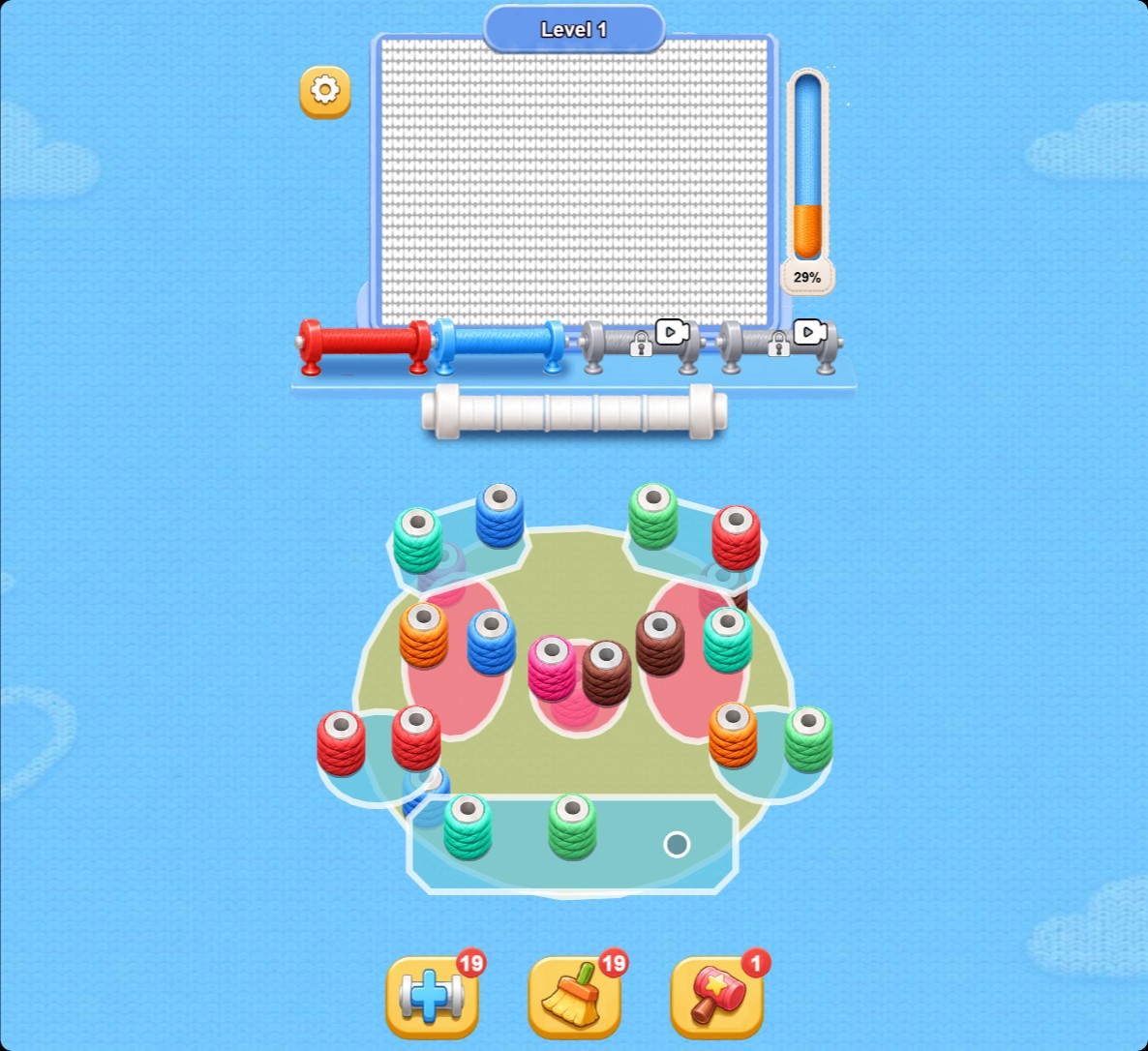
Clear stored yarn from the tray
Use the broom to clear yarn waiting on the temporary tray and make room for your next choices.
Add Slot Items
Choose how many Add Slot items to keep. Each use adds temporary tray space until the puzzle reaches its normal maximum.
Clear Slot Items
Choose how many broom items to keep. Store some yarn on the temporary tray, then use Clear Slot to clear it.
Available customisation options
Add Slot ItemsFree
Set your Add Slot item quantity for normal temporary tray expansions.
Choose a stock, apply it and use the Add Slot button during a puzzle.
Each puzzle keeps its normal maximum tray size.
Clear Slot ItemsFree
Set your Clear Slot item quantity to clear yarn waiting on the temporary tray.
Choose a stock, apply it and use the broom when the tray holds yarn.
Clear Slot needs stored yarn on the temporary tray.
Questions about customisation options
- Do items refill automatically?
- The controls set the quantities you choose. Using a tool subtracts an item normally.
- When can I use Clear Slot?
- Use it when yarn is waiting on the temporary tray. An empty tray has nothing to clear.
Using these features
Connect your game, then open Customise in the Windows app. Choose an option, check its available values and follow its instructions. Each option lists its own requirements and limits.
Setup for Cozy Loom: Yarn Sort →