

Choose your prism balance and armor levels
Choose your prism balance for armory purchases or set the armor level for an individual powercore colour.
Requires the Windows app and the Bytonian Mods browser extension for Chrome or Edge. Browser setup guide

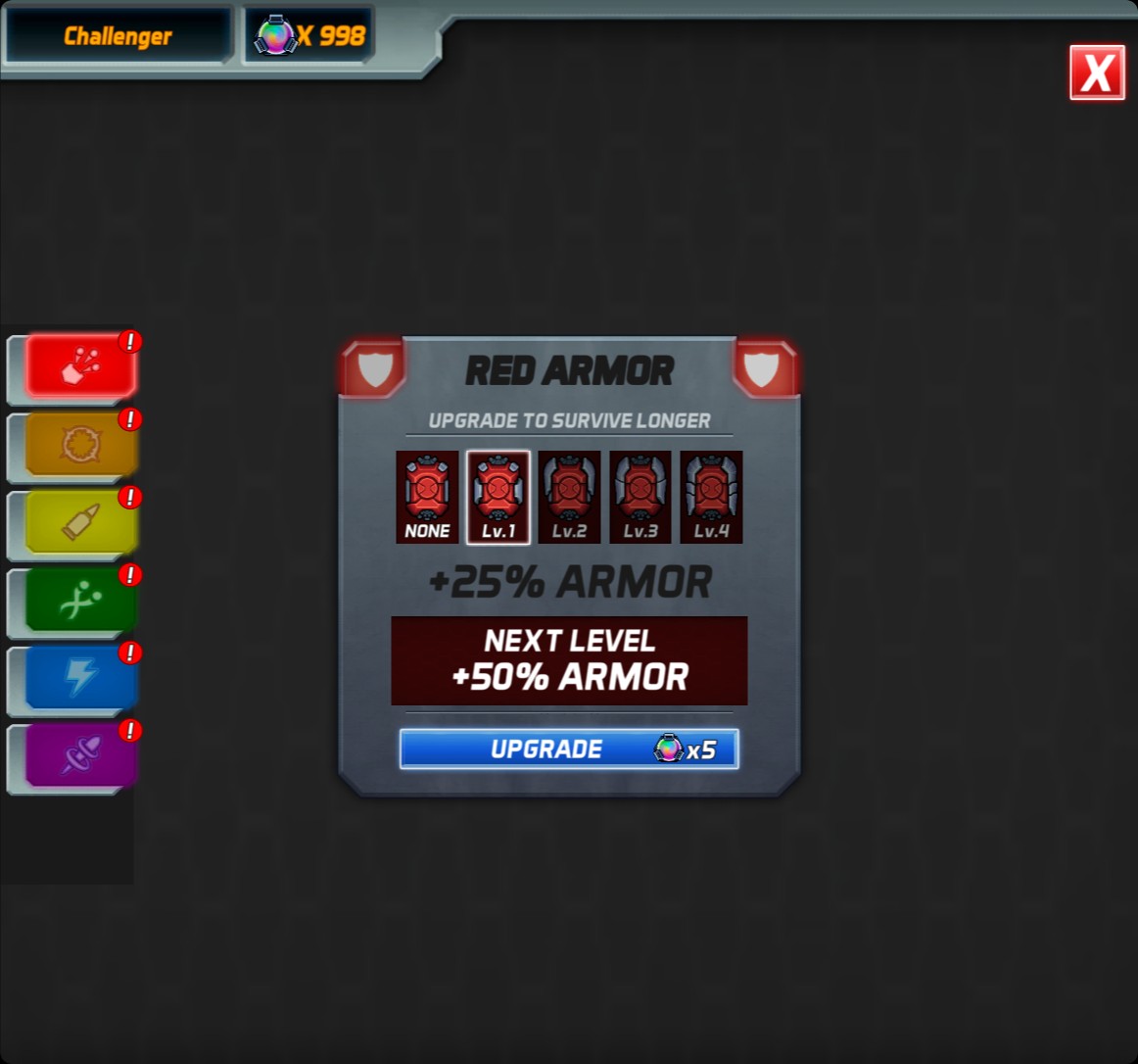
Prisms for armor upgrades
Choose your prism balance and use the armory to upgrade Colossatron's armor.
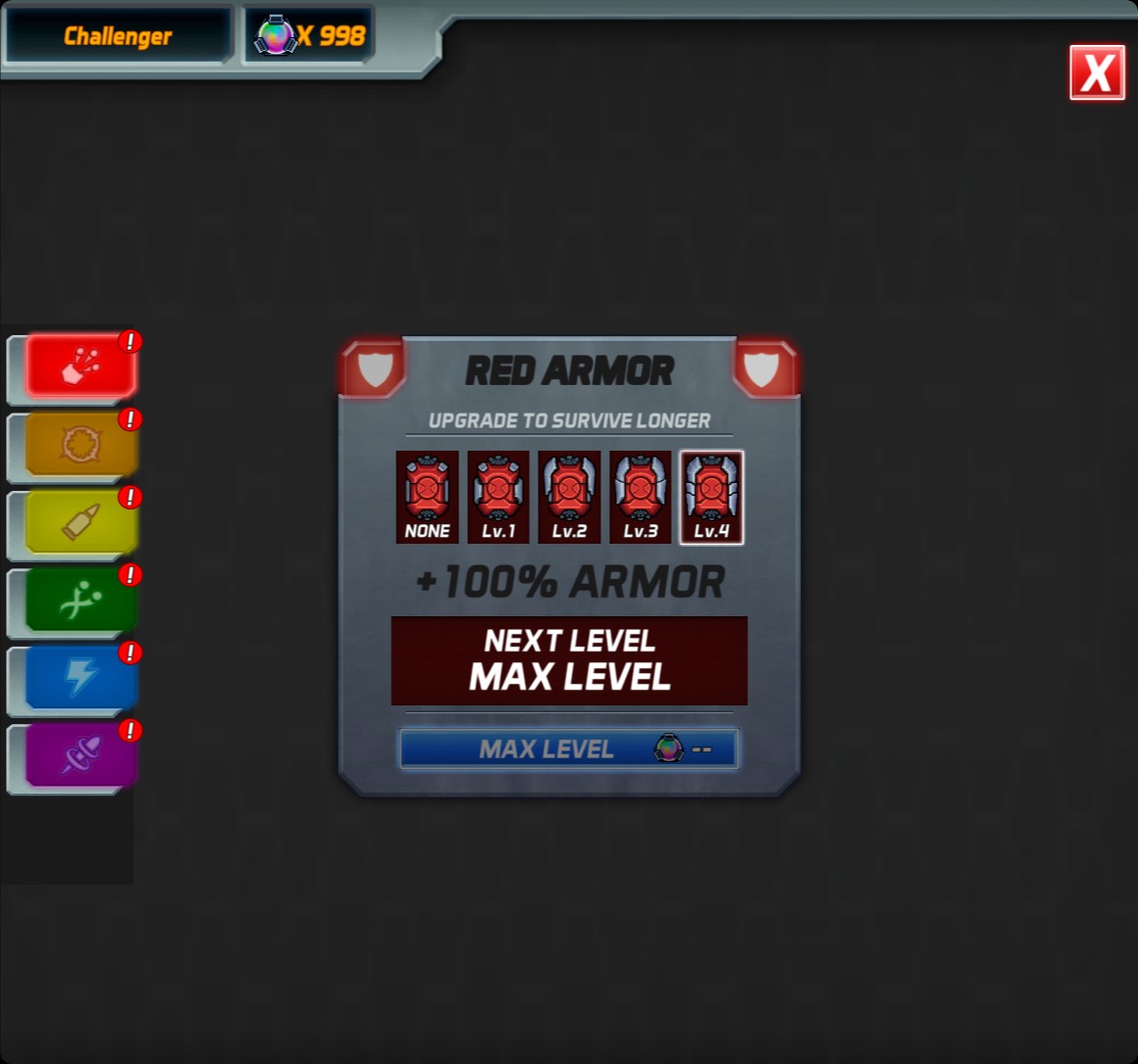
Red armor levels
Choose the armor level for red powercores with the save editor.
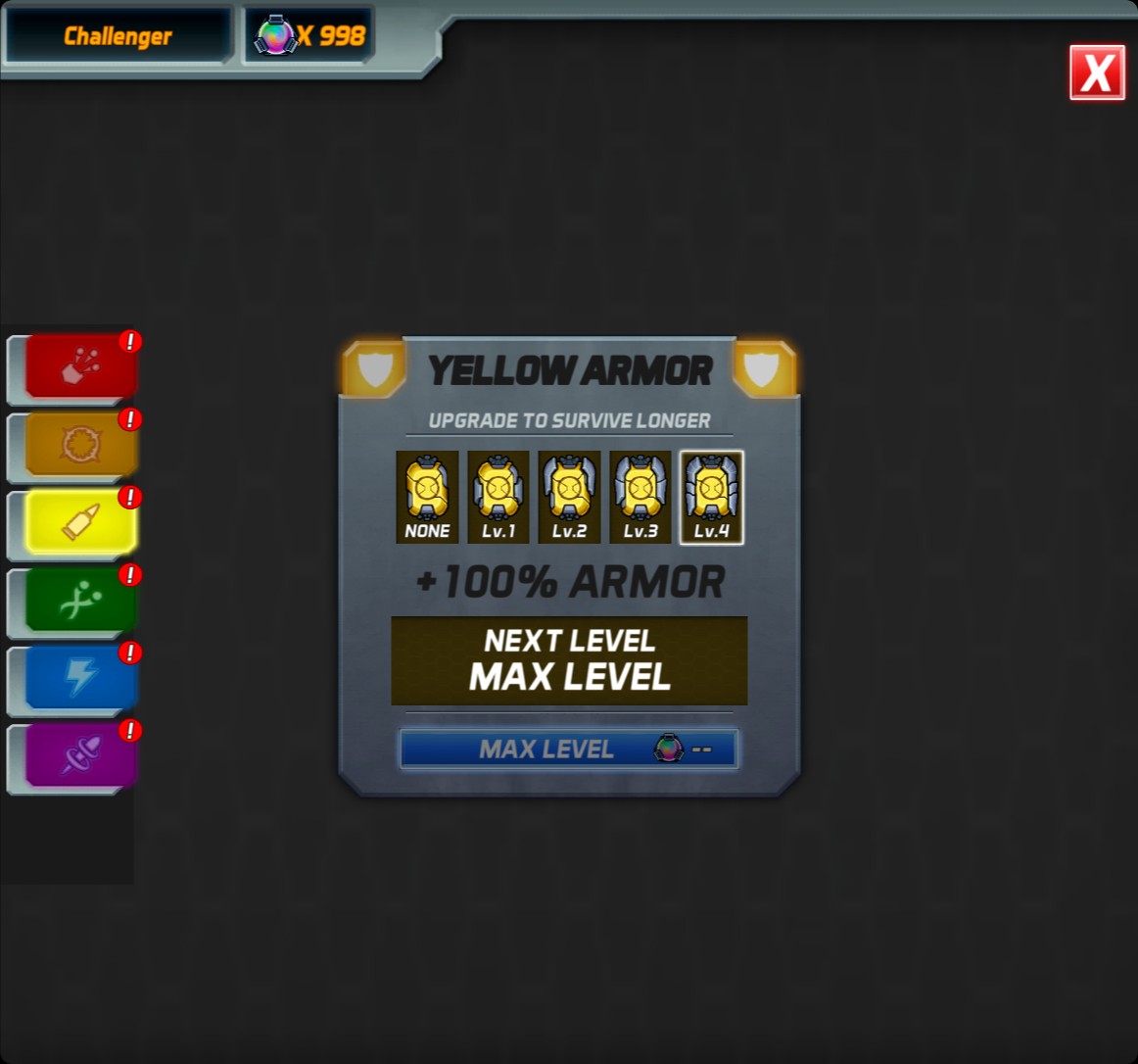
Yellow armor levels
Choose the armor level for yellow powercores with the save editor.
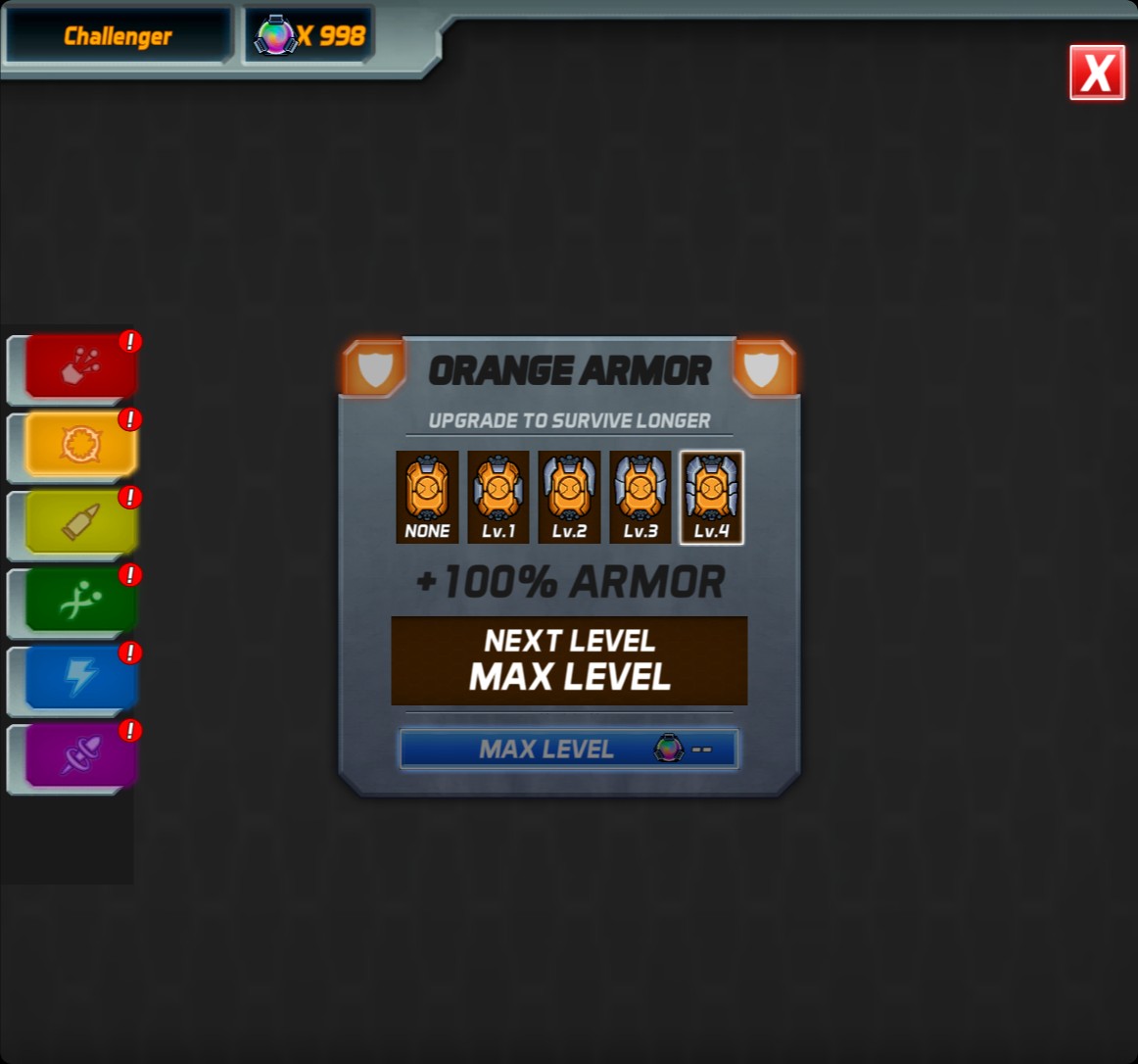
Orange armor levels
Choose the armor level for orange powercores with the save editor.
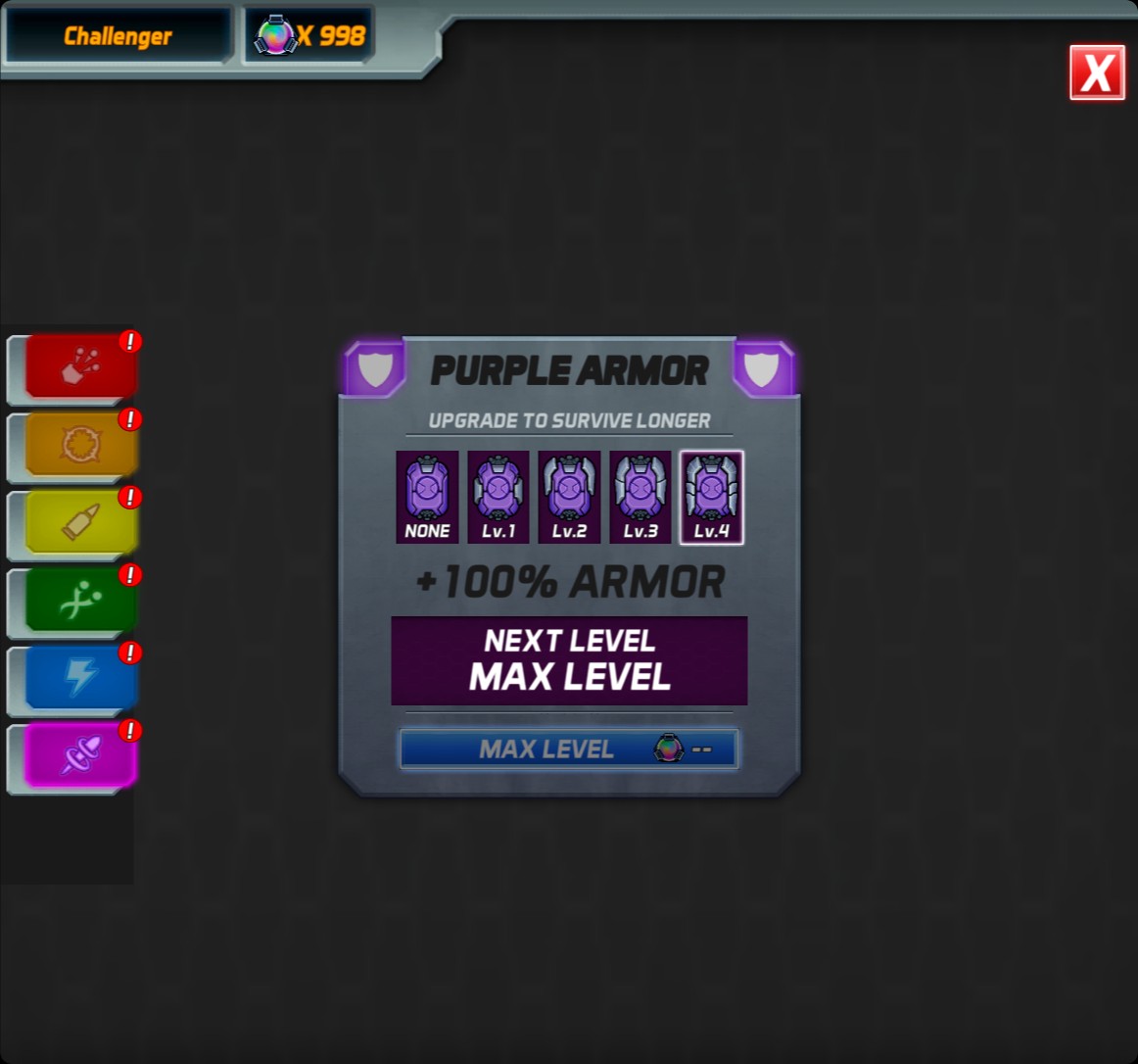
Purple armor levels
Choose the armor level for purple powercores with the save editor.
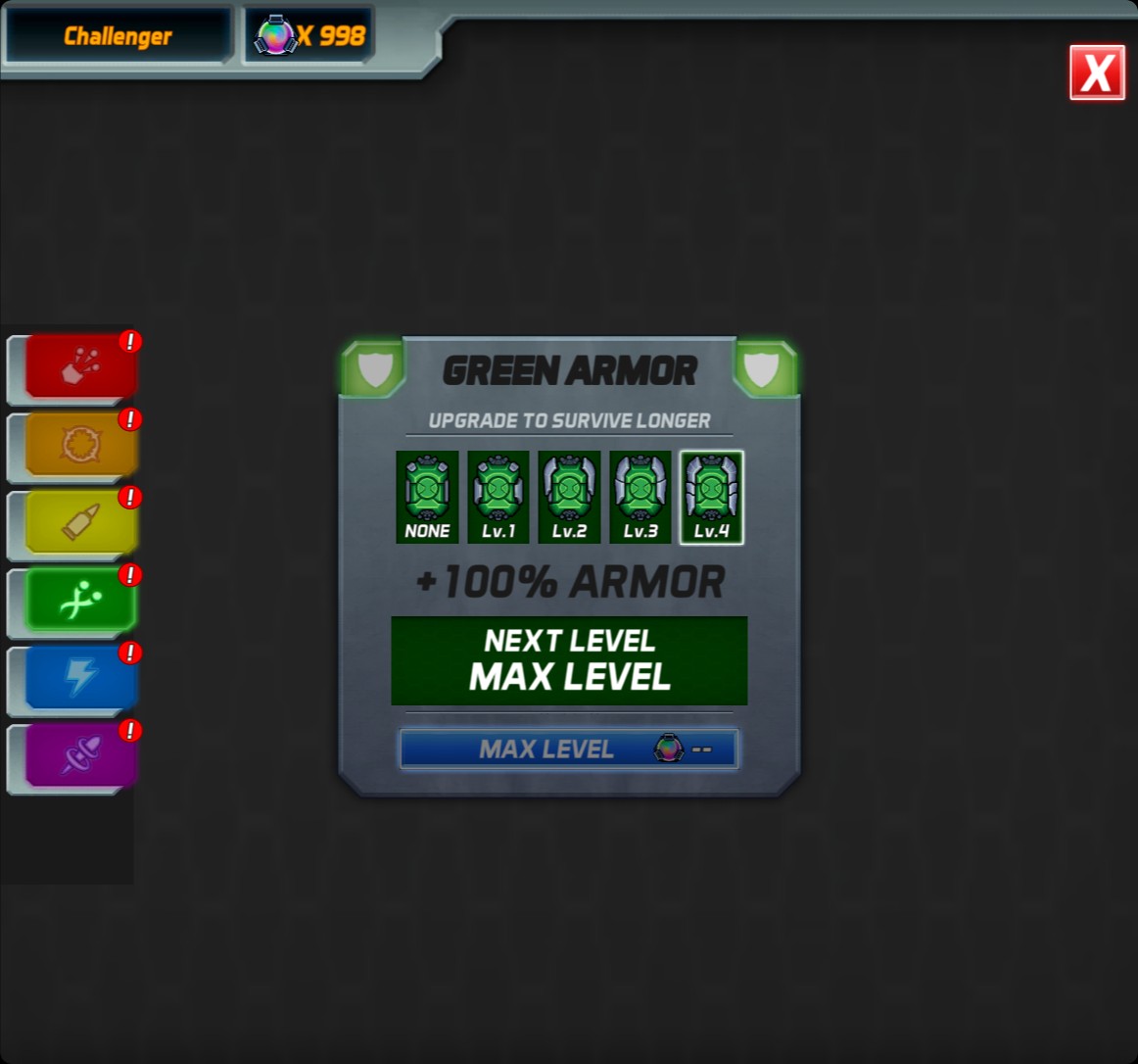
Green armor levels
Choose the armor level for green powercores with the save editor.
Choose a balance
Enter a prism amount from 0 to 1,000,000 and apply the change. Open the armory to choose your upgrades.
Set each armor color
Choose a level from 0 to 4 for red, yellow, orange, purple or green armor, then apply the change. Level 0 means no armor upgrade. Level 4 is the maximum shown in the armory, with a 100% armor bonus.
Available customisation options
PrismsFree
Choose your prism balance for normal armory upgrades.
Enter a whole number from 0 to 1,000,000, apply the change and open the armory.
Red armorPremium
Choose the armor level for red powercores.
Choose a level from 0 to 4 and apply the change. Open the matching armory tab to view the upgrade.
Yellow armorPremium
Choose the armor level for yellow powercores.
Choose a level from 0 to 4 and apply the change. Open the matching armory tab to view the upgrade.
Orange armorPremium
Choose the armor level for orange powercores.
Choose a level from 0 to 4 and apply the change. Open the matching armory tab to view the upgrade.
Purple armorPremium
Choose the armor level for purple powercores.
Choose a level from 0 to 4 and apply the change. Open the matching armory tab to view the upgrade.
Green armorPremium
Choose the armor level for green powercores.
Choose a level from 0 to 4 and apply the change. Open the matching armory tab to view the upgrade.
Using these features
Connect your game, then open Customise in the Windows app. Choose an option, check its available values and follow its instructions. Each option lists its own requirements and limits.
Setup for Colossatron →