
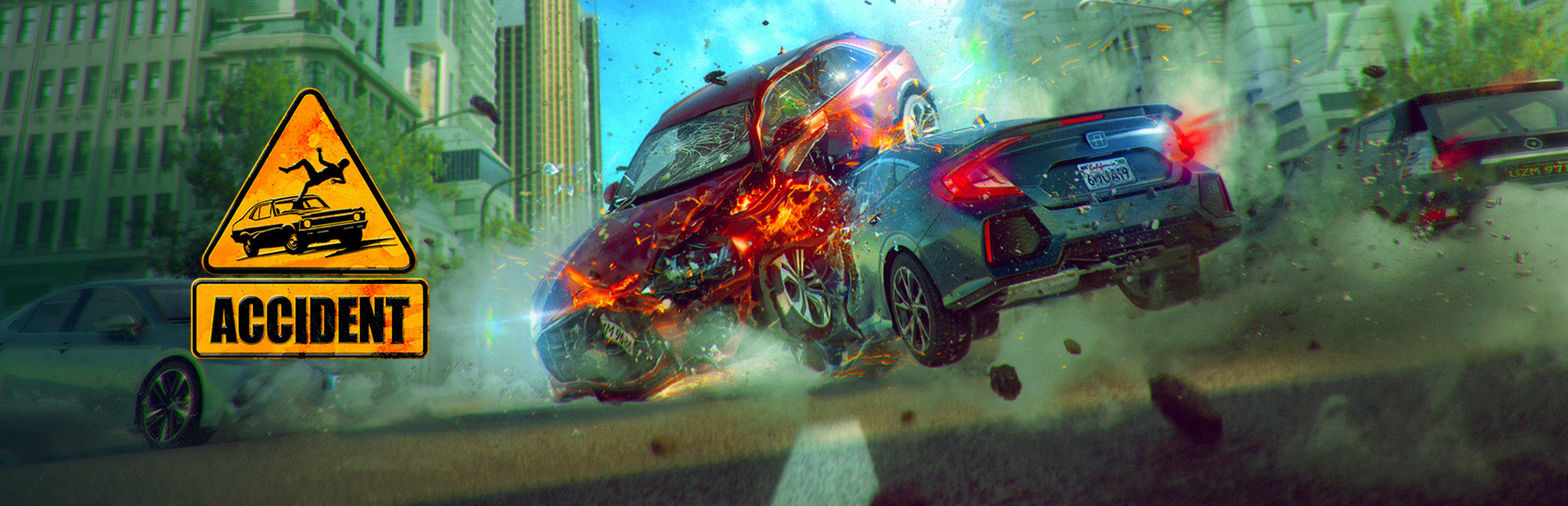
Inspect crash scenes from different positions
Fly lets you move above normal paths and through scenery when looking around an accident scene. The Premium control uses the direction you are looking, with separate normal and faster movement speeds.

Check the flight controls
Open Movement in Bytonian Mods and choose Fly. Review the directional, up, down and faster-flight bindings, then toggle Movement on. V is the default toggle; your saved bindings remain available in the app. Choose a manageable speed and return to a clear, walkable spot before turning Movement off.
Keep mission steps in mind
Flight changes where you can move. It does not automatically treat victims, collect evidence or finish objectives; use the ordinary interactions when continuing the case.
Available ability modifiers
MovementPremium
Fly around the accident scene and through scenery to inspect it from different positions.
Open Movement, choose Fly, check your movement keys and speeds, then use the Movement toggle or its configured keybind.
Does not complete case objectives. Return to a clear, walkable position before disabling.
Supported movement styles: Fly
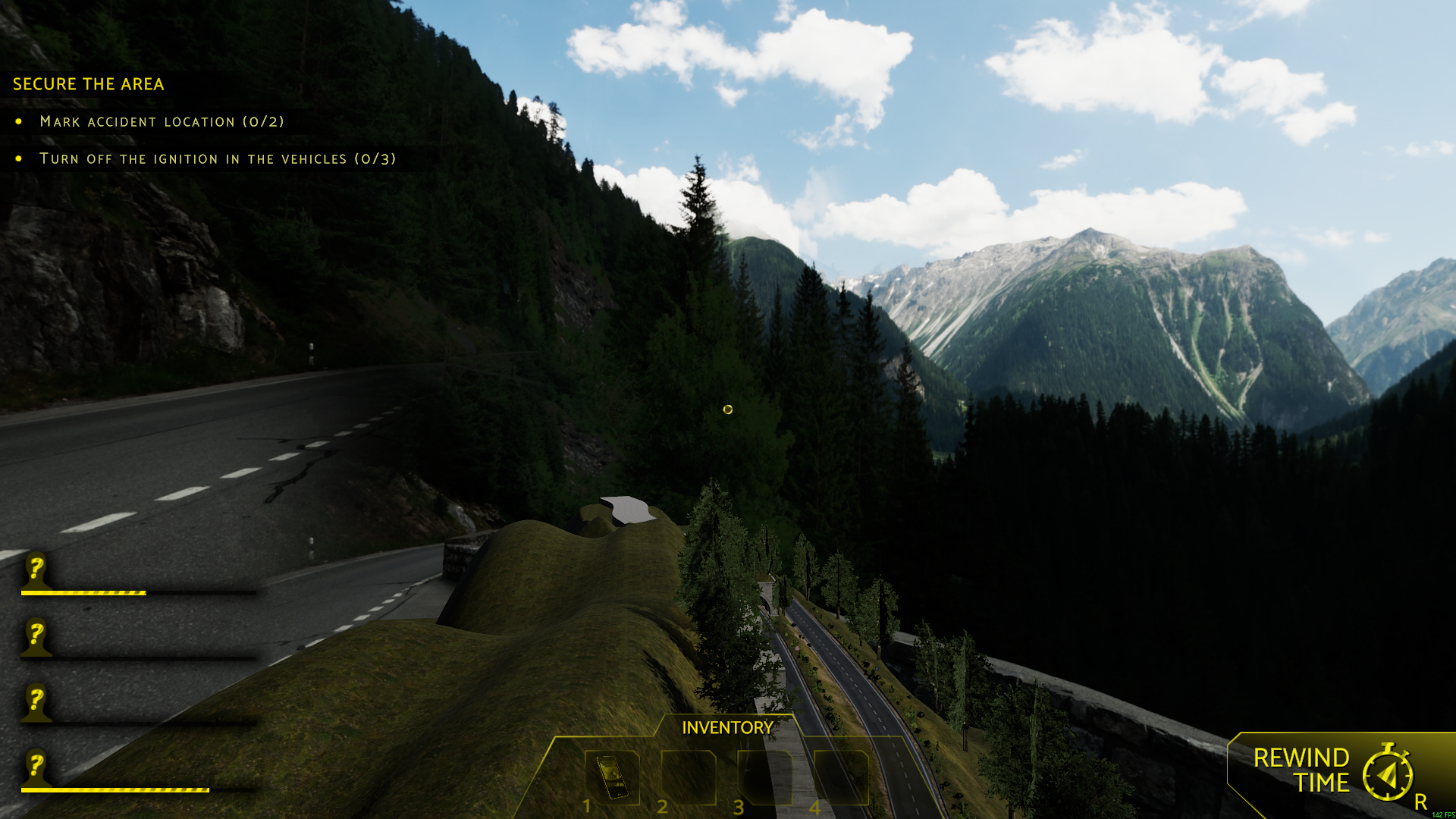
Fly above the mountain road
Rise above the accident scene and explore the mountain roads from the air with Fly.
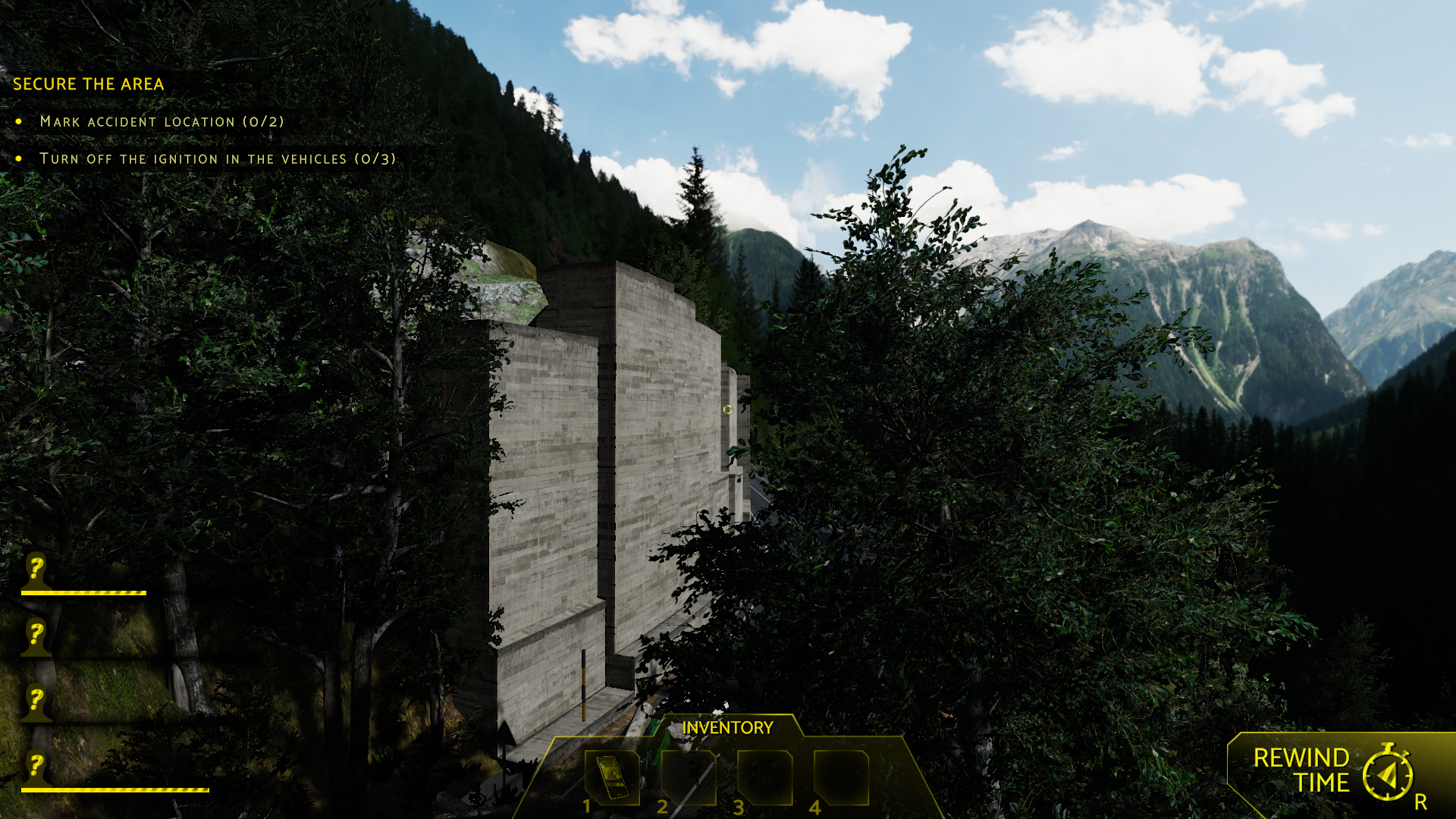
Explore above the roadside
Fly above the accident scene and find a new perspective on the road, bridge and surrounding mountains.
1 / 2
More ways to customise Accident
- Accident unlocks
Enable mission access and reopen the accidents folder.
Using these features
Choose the feature in the Windows app after connecting your game. Check its requirements before making a change.
Setup for Accident →