

Frame your kingdom and steady the camera
Choose how much of the landscape you see around your ruler and how strongly the camera pulses. Camera zoom controls view size, while Camera shake intensity controls the shake amount.

Choose the view size
Enable Camera zoom and set View size between 50% and 200%. The percentage is relative to the normal wide camera view. Changes apply while the camera follows your ruler.
Choose the shake intensity
Enable Camera shake intensity and choose an amount from 0% to 100%. Zero removes the pulse, and 100% keeps the normal intensity.
Available presentation modifiers
Camera shake intensityPremium
Reduce the camera's shake pulse for a steadier view while keeping normal camera follow.
Enable Camera shake intensity and set the amount from 0% to 100% of normal. Switch off to restore the normal intensity.
Camera zoomFree
See your ruler more closely or widen the view around them with adjustable camera zoom.
Enable Camera zoom and choose View size from 50% to 200% of the normal wide view. Switch off to return to the normal zoom controls.
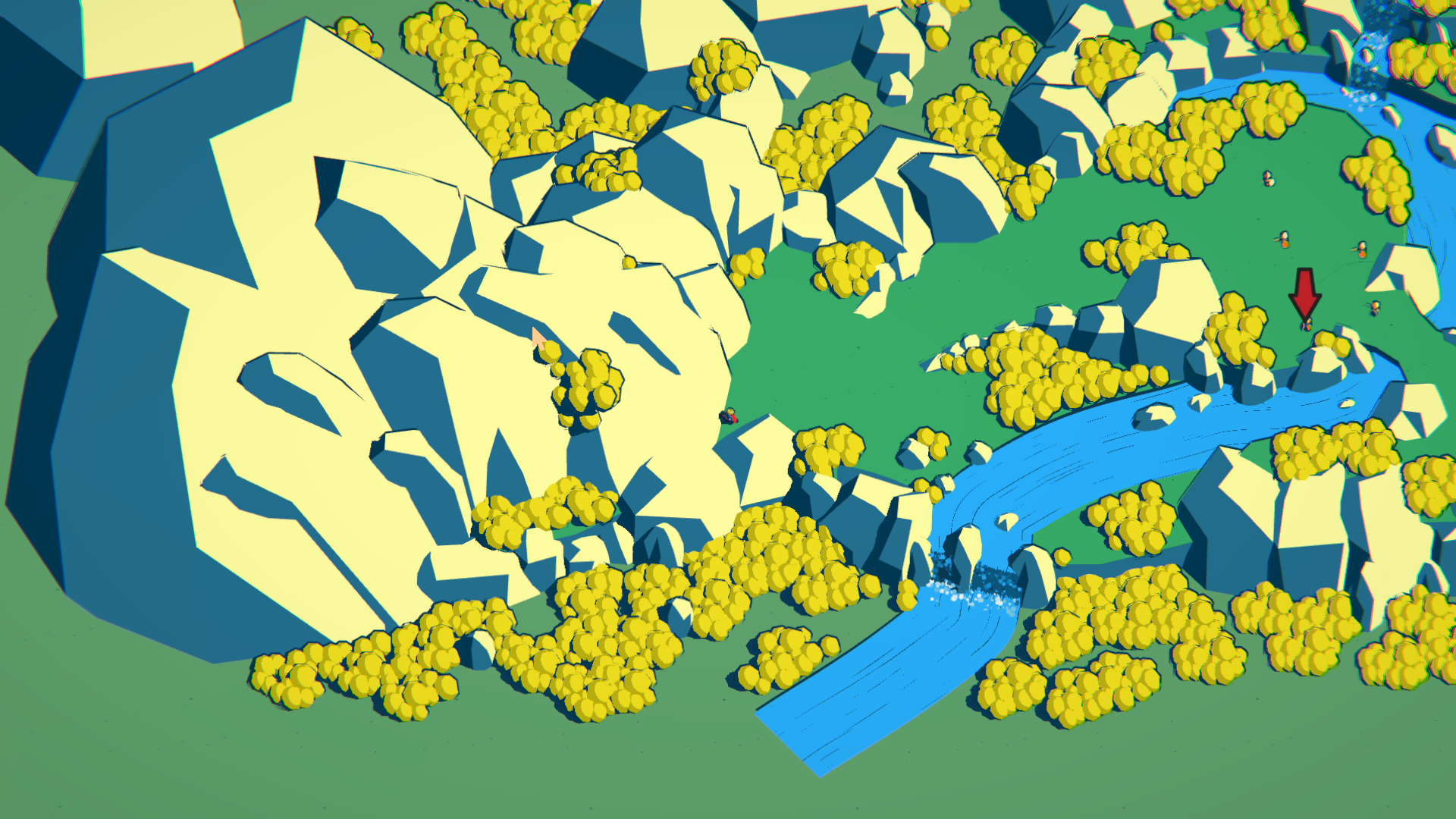
See more of the river valley
Camera zoom at 200% view size shows a wider stretch of Thronefall's tutorial valley, including the river, cliffs and path around the ruler.
Using these features
Choose the feature in the Windows app after connecting your game. Check its requirements before making a change.
Setup for Thronefall →